
Kadence – How to Edit Section Overlay Links
Kadence doesn't have a free dedicated block for adding text on top of an image, so to get that look, we use a workaround: a background image set on a Section block, with a Text (Adv) block layered on top. I call this a "section overlay" or a "section overlay link".
Do you have a section on your site that looks similar to this?

Or this?

Or something like this?

If you do, it's most likely a section overlay link! I'll show you how to edit these types of blocks below.
Replacing the Image
-
Simply click on the image/section you want to edit to open the settings on the right.
Important: To make sure you've selected the Section block (and not something nested inside it), click somewhere near the top-left corner of the section – then check the settings panel on the right to confirm it says "Section" at the top.
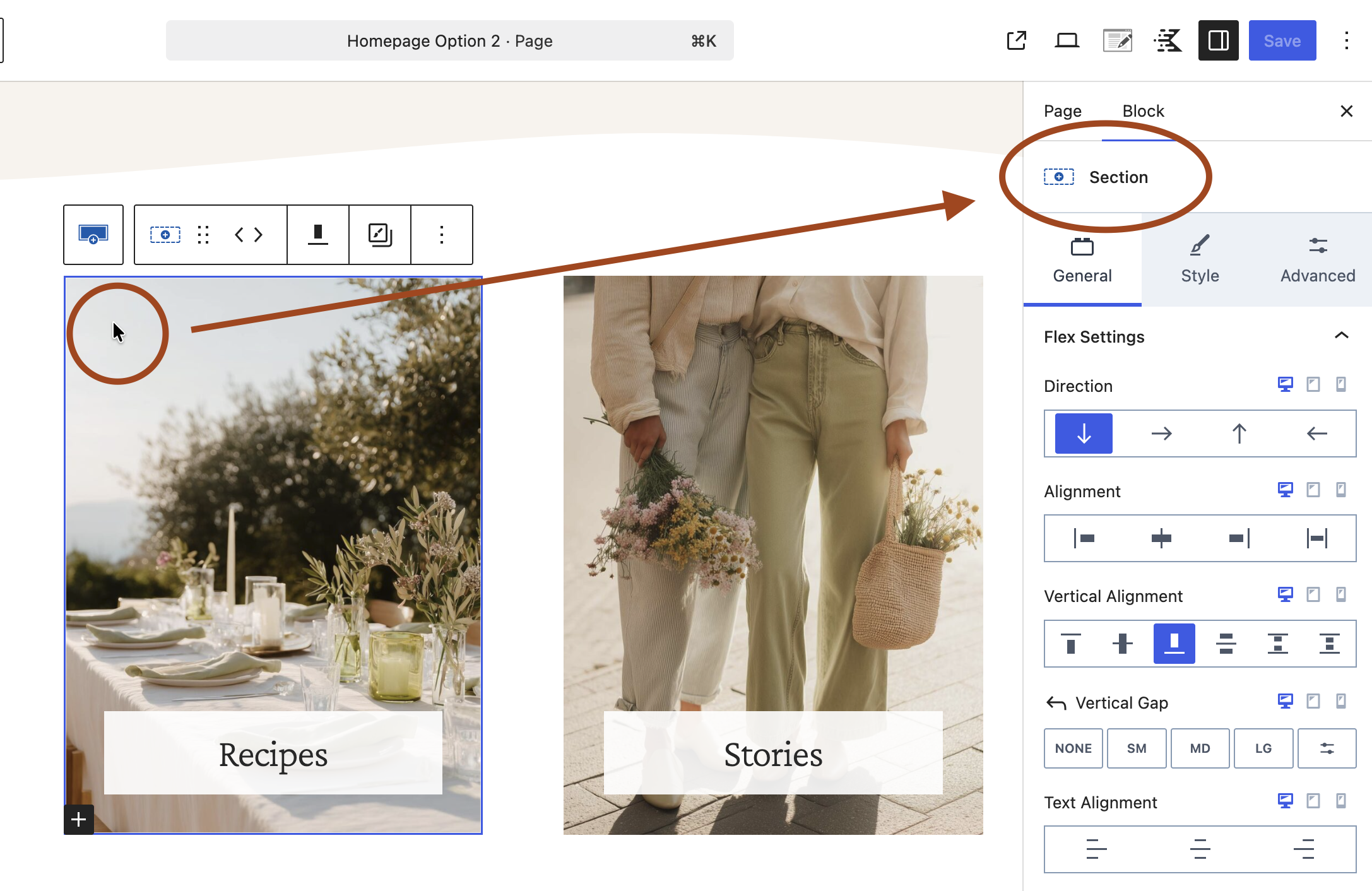
Click in the top-left corner, and confirm it says "Section" - Now click the Style tab.
-
Under Background Image, click Edit Image to choose your new image.
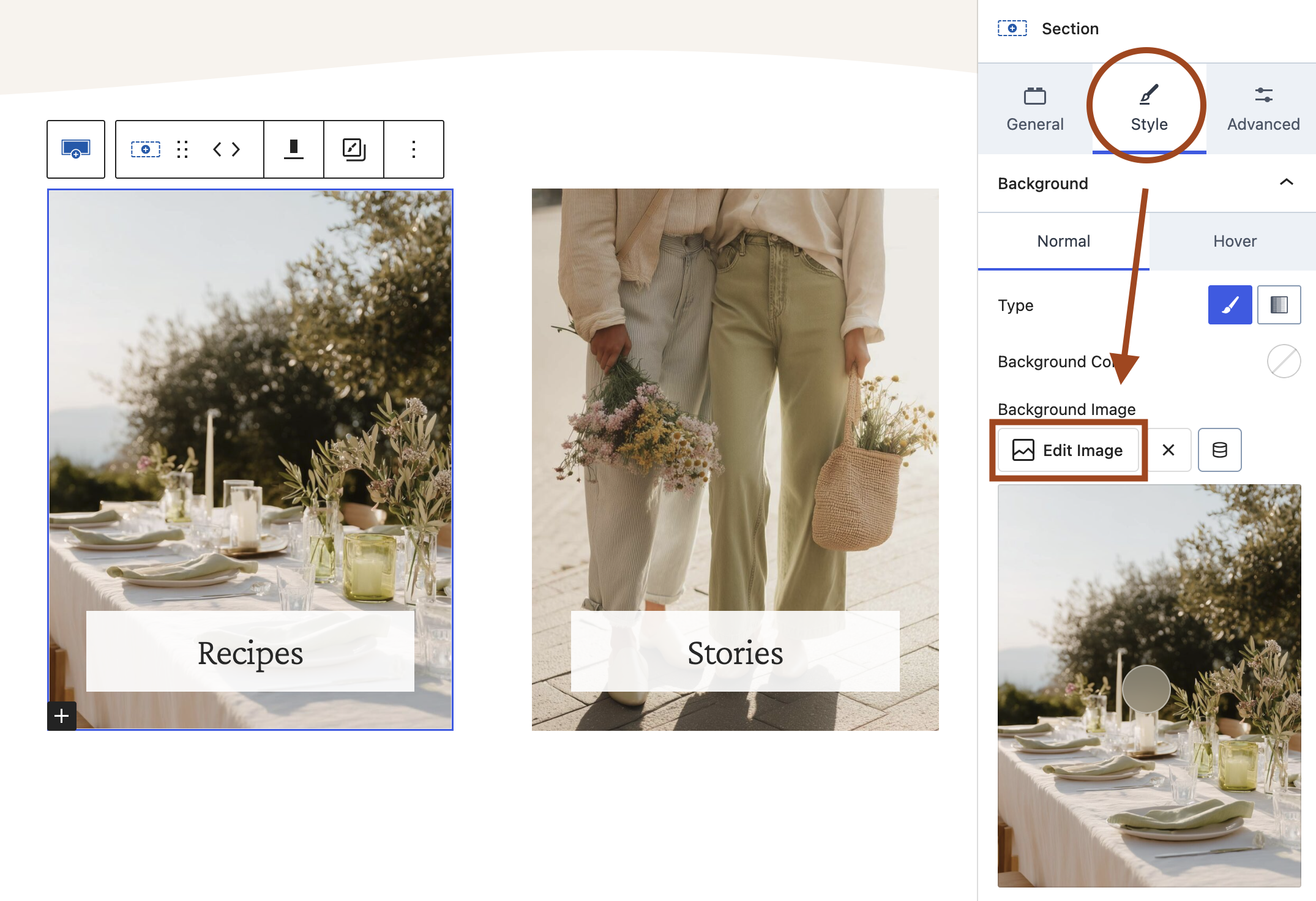
Edit the background image
Adjusting the Text
Simply click directly on the text sitting on top of your section to edit the wording. This will also open the Text (Adv) Block settings on the right.
Under the Style tab, you can adjust the text color, text background color, add icons, shadows and more.
How To Add or Edit an Overlay Link
- With the Section block selected, go to the General tab on the right.
- Open the Overlay Link dropdown.
- Under Link entire section, click the little pencil icon to add or edit the link (URL). This turns the whole section into one clickable link — handy for things like linking the section to a blog category page or another page on your website.
💡 Tip: Link not saving?! Make sure to click the "submit" arrow button.

How to Link a Section Overlay to a Category Page
You can link section overlays to whatever you'd like! But most section overlays are meant to link to one of your blog categories.
Once you know your category's URL, just paste it into the Link entire section field. Not sure how to find that URL? See: How to Find Your Category Link (URL)