
Kadence – How to Edit Images and Galleries
This guide covers how to replace images in the Image and Gallery blocks, plus a few extra ways to customize each one!
Advanced Image Block

- Click directly on the image inside the block to select it.
- A small toolbar will appear above the image. Click Replace.
- Choose a new image from your media library, or upload one (click the "upload files" tab), then select it.
Customizing Your Image
You have a lot of customization options here too! Click on the image block and look to the block settings on the right-hand side. Let's go over a few things:
Changing the Image Size
In the General tab, under Size Ratio, you can change the ratio of the image.

Linking Images
Select the image and click the link icon in the toolbar to link it to something. Or, in the block settings, click the General tab and scroll to the bottom to open the Link Settings.

Styling
In the block settings, click the Style tab. You can adjust or add things like borders, overlay colors, drop shadows, and more.
→ Learn more about customizing the Image (Adv) block here.
Gallery Block
- Click somewhere on the Gallery block to select it.
-
In the block's top toolbar, click the Edit/Add Gallery Images icon.
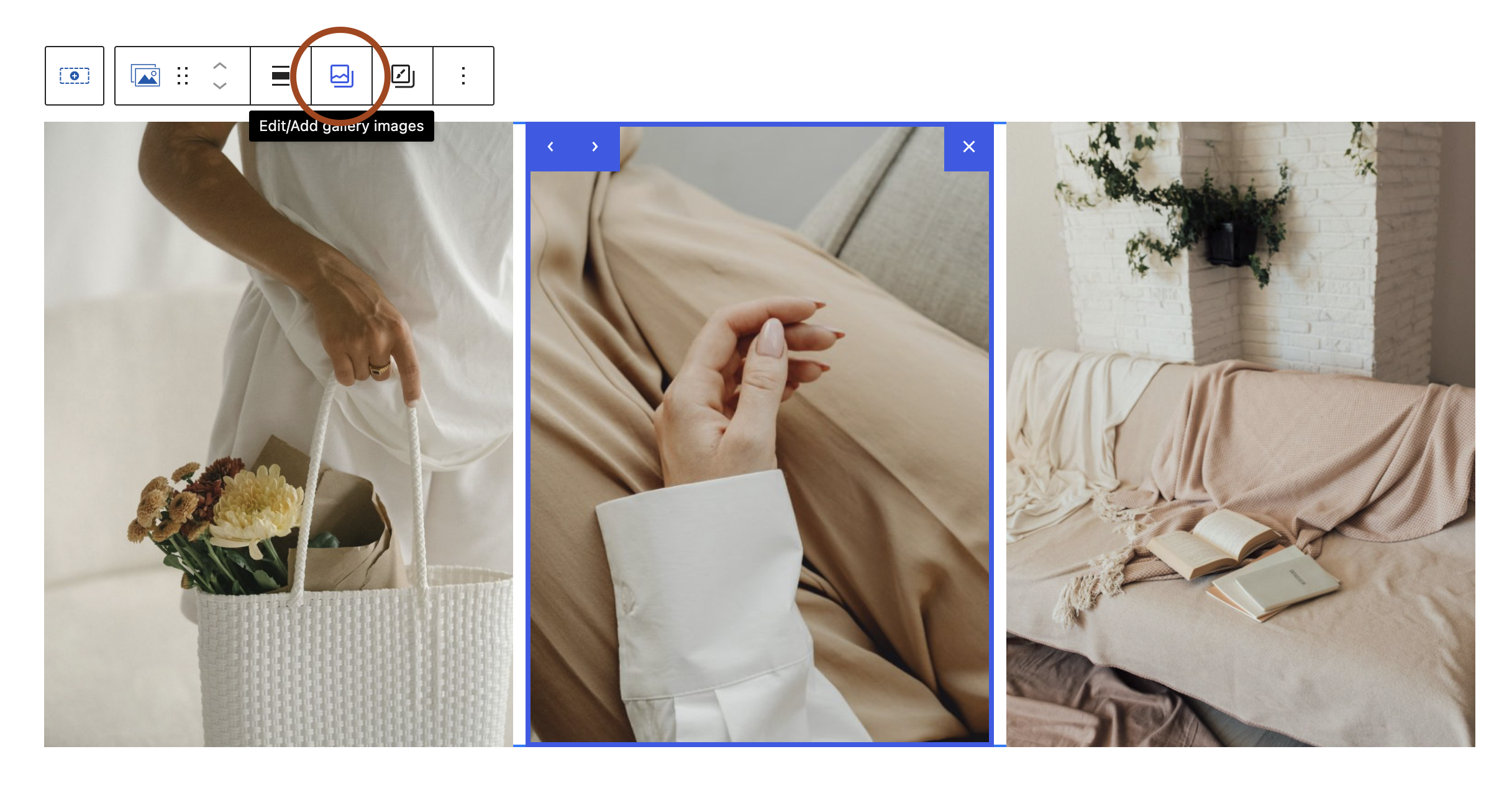
Edit gallery images -
This will open your gallery images in an editable view. Click the X on any images you want to remove, then in the left sidebar, click Add To Gallery to add your new images from your media library. Click Upload Files to upload new images.
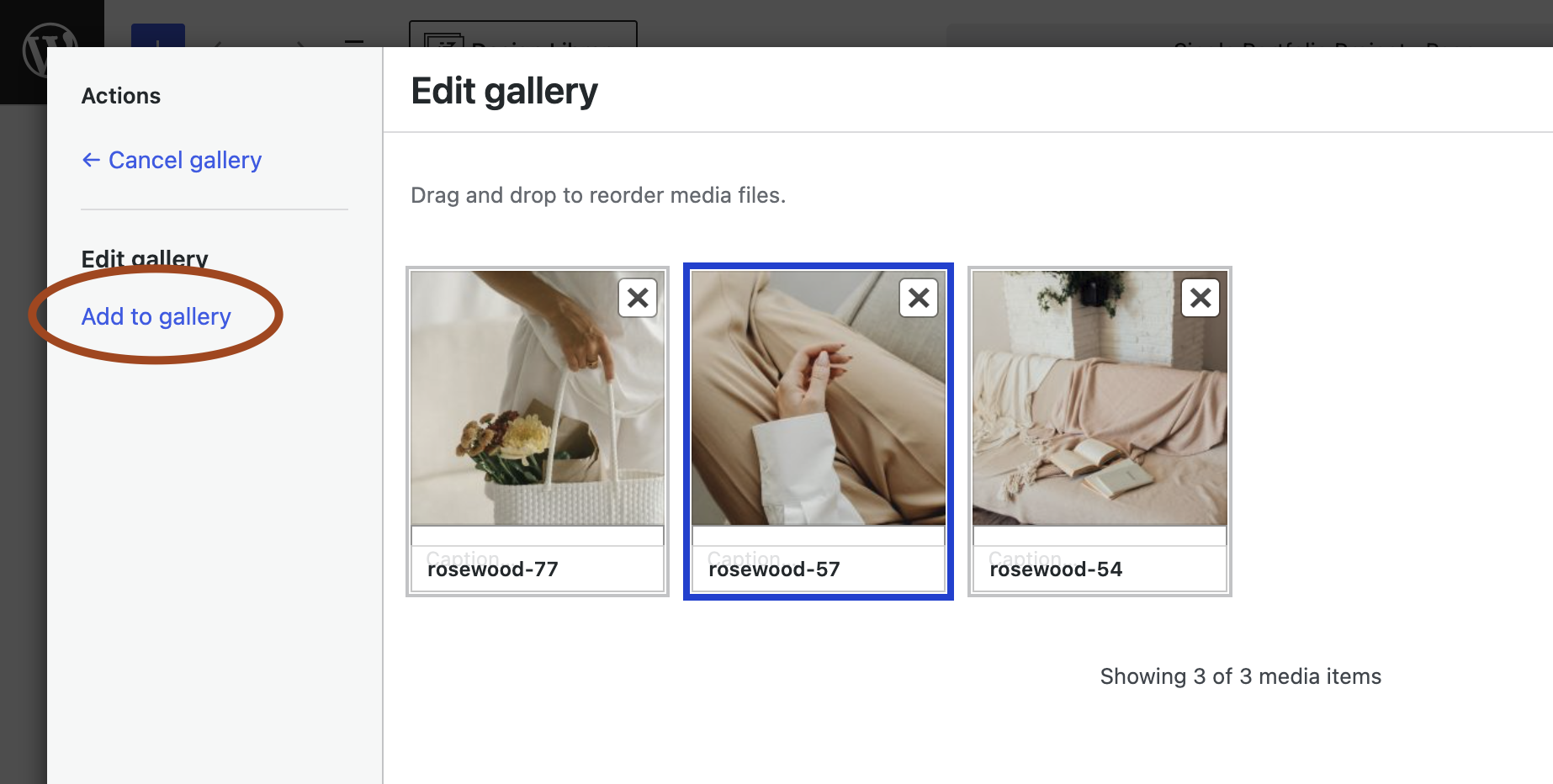
Add images to gallery - You can also drag and drop the images to rearrange them here, or just click the arrows that sit on top of the image in the block editor.
- Click Update Gallery to save your changes.
Customizing Your Gallery
Click on the Gallery block and look to the block settings on the right-hand side.
Changing the Layout
In the General tab, you can choose your gallery type (Grid, Masonry, Carousel Slider, and more), adjust the number of columns, and set the spacing (gutter) between images.
Depending on the type of gallery you've selected, you may have different customization options than what is shown below.

Linking Images
In the block settings under the General tab, in the Link Settings section, you can choose what your images link to — like the image's attachment page, or a custom link.
If you select Custom, a URL box will appear below the image you have selected. You can then link each of your images to a custom URL, like a page or different portfolio projects.
If you select Media File, this allows you to enable a lightbox, so images open in a pop-up overlay with arrows instead of navigating away from the page.

Styling
In the block settings, click the Style tab. You can adjust the border radius, add an image filter, or add a shadow to your images. Depending on the type of gallery you have selected in the General tab, you may have different styling options here.
→ Learn more about the Gallery (Adv) block here.