
Kadence – How to Edit Rows and Sections
What Are Row Blocks?
Your pages are built out of Row blocks, stacked one after another. Think of each Row as its own horizontal section of your page — it could be a large hero, an about me intro, a call-to-action, opt-in area, etc. — these are all typically their own Row block. Think of a Row like a container that holds your content.
There are many ways to edit and customize these Row blocks, and this guide will walk you through the most common settings!

How to Select a Row
Click near the upper left corner of the Row block you want to edit. In the block settings panel on the right, confirm it says "Row" at the top — that lets you know you've selected the Row block itself, and not something else nested inside it.

Now you've opened the block settings for this Row!
See the Layout, Style, and Advanced tabs? You can click each tab to find settings for the Row block. Let's go over some of these settings:
Editing Row Backgrounds
With your Row block selected, go to the Style tab and open Background Settings.
Background Types
Next to Type, you'll see a few different background types to choose from:
- Classic — a solid background color and/or a background image.
- Gradient — a smooth blend between two or more colors.
- Slider — multiple images and/or colors that transition through each other, like a slideshow.
-
Video — a background video (great for hero sections, though keep in mind it's meant to be decorative, not a full video player).
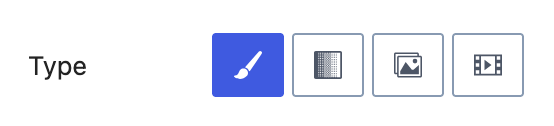
Background Types
Click on the background type you'd like to use, then follow the settings that appear underneath to add your color, image, slider images, or video.
Background Overlay
Underneath Background Settings, you'll find Background Overlay Settings — this adds a color (or gradient) layer over your background. Here's an example of a blue background overlay on top of a background image:

Spacing
In the Advanced tab, you'll find Padding and Margin settings.
Padding adds space inside the row (between its content and its edges), while Margin adds space outside the row (between it and the blocks around it).
A Few More Settings
- Layout (General tab): Adjust the number of columns, the gutter (spacing between columns), and the row's max content width.
- Column Widths (General tab): If your Row has more than one column, hover your mouse between two columns — a small adjuster icon will appear. Click and drag it left or right to resize the columns.
→ Learn more about the Row Layout block here.
Sections (aka Columns)
Sections are what live inside your Row blocks — they're what hold all of your actual content, like text, images, and buttons. If a Row has 2 columns, that means there are 2 Section blocks nested inside it (one per column); a 3-column Row has 3 Section blocks, and so on.
So when you're adding content to a page, you're typically adding it inside a Section — for example, clicking into a Section and adding a Text block or an Image (Adv) block.