
Kadence – Linking Text and Buttons
Linking Text & Buttons
- Wherever you see this 🔗 icon, that means you can add a link!
- With your cursor, highlight the text (or heading) you want to link. If you're linking a button, just click the button!
-
In the toolbar that pops up, click the link icon
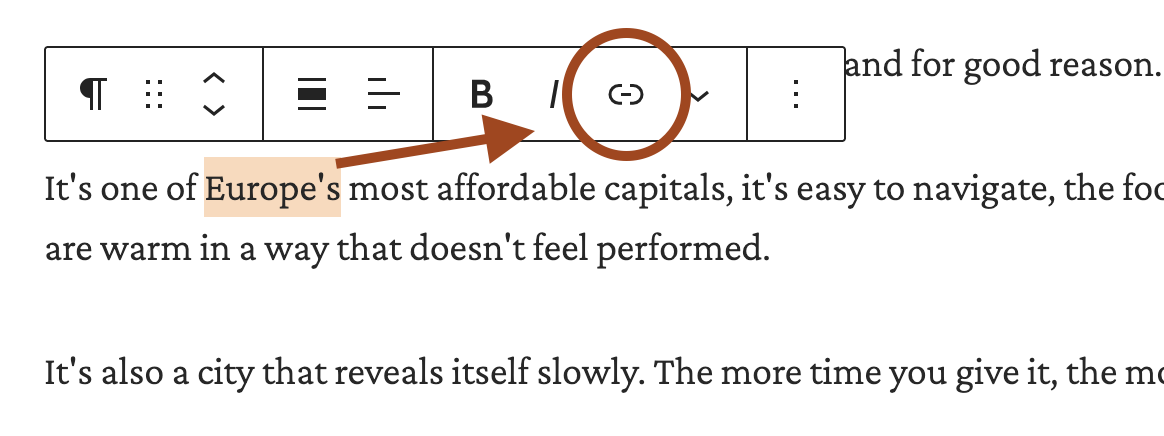
Linking text 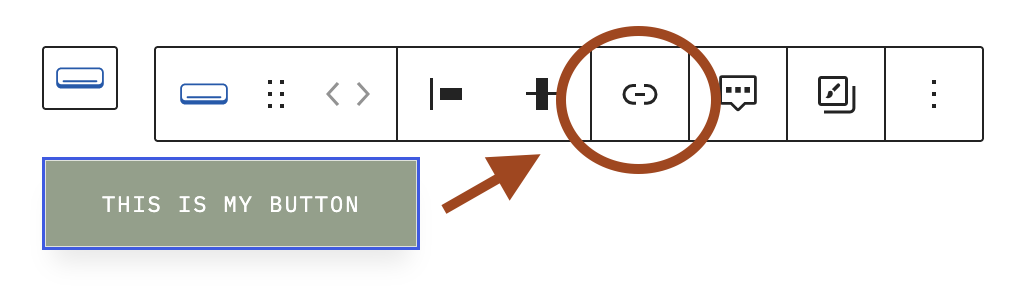
Linking a button -
Type or paste your URL in the field, then click the submit arrow (or press Enter) to apply it.
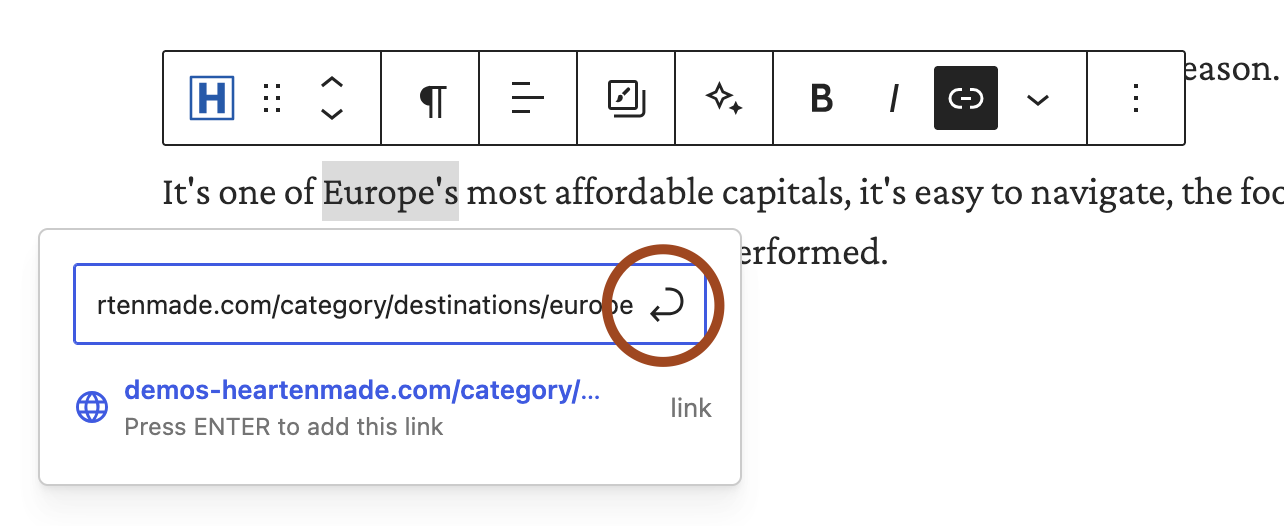
Press enter or click the submit arrow
💡 Tip: You can also search instead of pasting a URL! Start typing a page name — like "About" or "Blog" — and any matching pages or posts on your site will pop up. Click one to link to it automatically. For example, when I searched for "Europe", it found my Europe category page that I wanted to link to:

More Link Options
Once you've added a link, click the down arrow next to it to reveal a few more settings, like "Open in a new tab?" and more. These options vary slightly depending on which block you're working with.
For buttons, you'll want to click the pencil icon (after you've inserted a link already) and then click the down arrow.
Editing or Removing a Link
Click back into the linked text, button, or section. If it's already linked, click the X to remove the current link first. Then add your new link and click the submit arrow to confirm it.
Jump/Anchor Links
Everything above covers linking out to a new page. But if you want to link to a specific spot on the same page instead — like jumping down to a section further below — that's a different technique called an anchor link (or jump link). See Creating Anchor Links (Jump Links) for how to set those up.