
Kadence – How To Update Your Hearten Made Theme
Did you notice a new version listed in the Changelog for your theme? If so, this guide will walk you through exactly how to update to the latest version.
Before we dive in, it’s helpful to understand how Hearten Made themes work. All HM themes are Kadence child themes. That means most core updates – like performance improvements, security patches, bug fixes, and foundational features – are handled by the Kadence Theme and the Kadence Blocks plugin.
Because of that, it’s completely normal if your HM theme doesn't receive frequent updates (or sometimes any at all). Most improvements are happening behind the scenes at the Kadence level, not within the child theme itself. Learn how to update Kadence and Kadence Blocks here.
That said, I do occasionally release theme updates for refinements, CSS tweaks, or other fixes. If you see that a new version is available in the Changelog, here’s how to update safely.
How to See If Your HM Child Theme Has an Update
Hearten Made themes do not auto-update inside your WordPress dashboard.
To see if your theme has a new version available:
- Visit the Changelog page.
- Find your theme name.
- Check if there is a new version available.
If the version listed on the Changelog is higher than the version currently installed on your site, that means an update is available. Go to Appearance > Themes and click on the image of your theme to open the Theme Details. On the right side, you'll see the current version you have installed.
How to Download the Updated Theme File
If you purchased from the Hearten Made website, the latest version of the theme will be available in your account:
- Log into your account.
- Navigate to your Downloads.
- Download the updated theme file.
If you purchased your theme from Etsy, please email Carissa at support@heartenmade.com with your order # to request the latest version file.
Things to Know Before You Update
- NO, this will not mess up any of your customizer settings or website design! Your customizer settings, design, pages, posts, and other content will be safe.
- I always recommend making a backup of your website before installing a theme. Most hosting providers offer backup options, or you can use a backup plugin. While it's rare, Hearten Made is not liable for any loss of content or data as a result of updating or switching themes.
- If you have edited any files inside of your child theme – for example, modifying the style.css or functions.php file – those changes will be overwritten when you activate the new version. To prevent losing custom code, I recommend moving any custom CSS, PHP, or other file modifications into a Code Snippets plugin before updating your theme.
How to Upload and Activate the New Theme Version
- Unzip or Extract the file you downloaded (ex. UNZIP-olive.zip). Inside of this folder you will find the theme file you will be uploading (ex. olive.zip).
- Go to your WordPress Dashboard.
- Navigate to Appearance > Themes.
- Click Add New and then click Upload Theme.
- Choose the theme file (ex. olive.zip) and click Install Now.
-
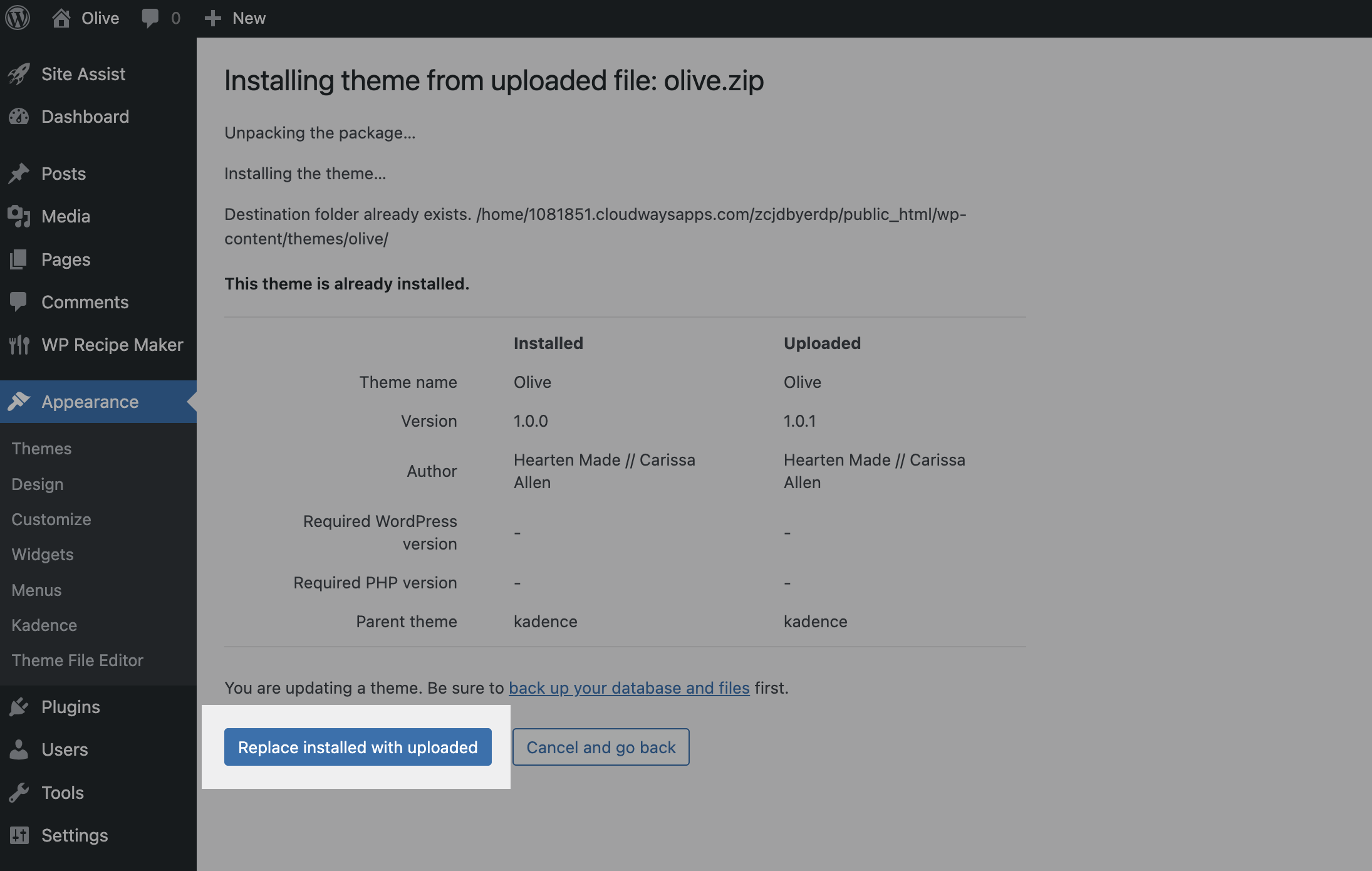
In the next screen, click Replace installed with uploaded.
-
On the next screen, click Activate.
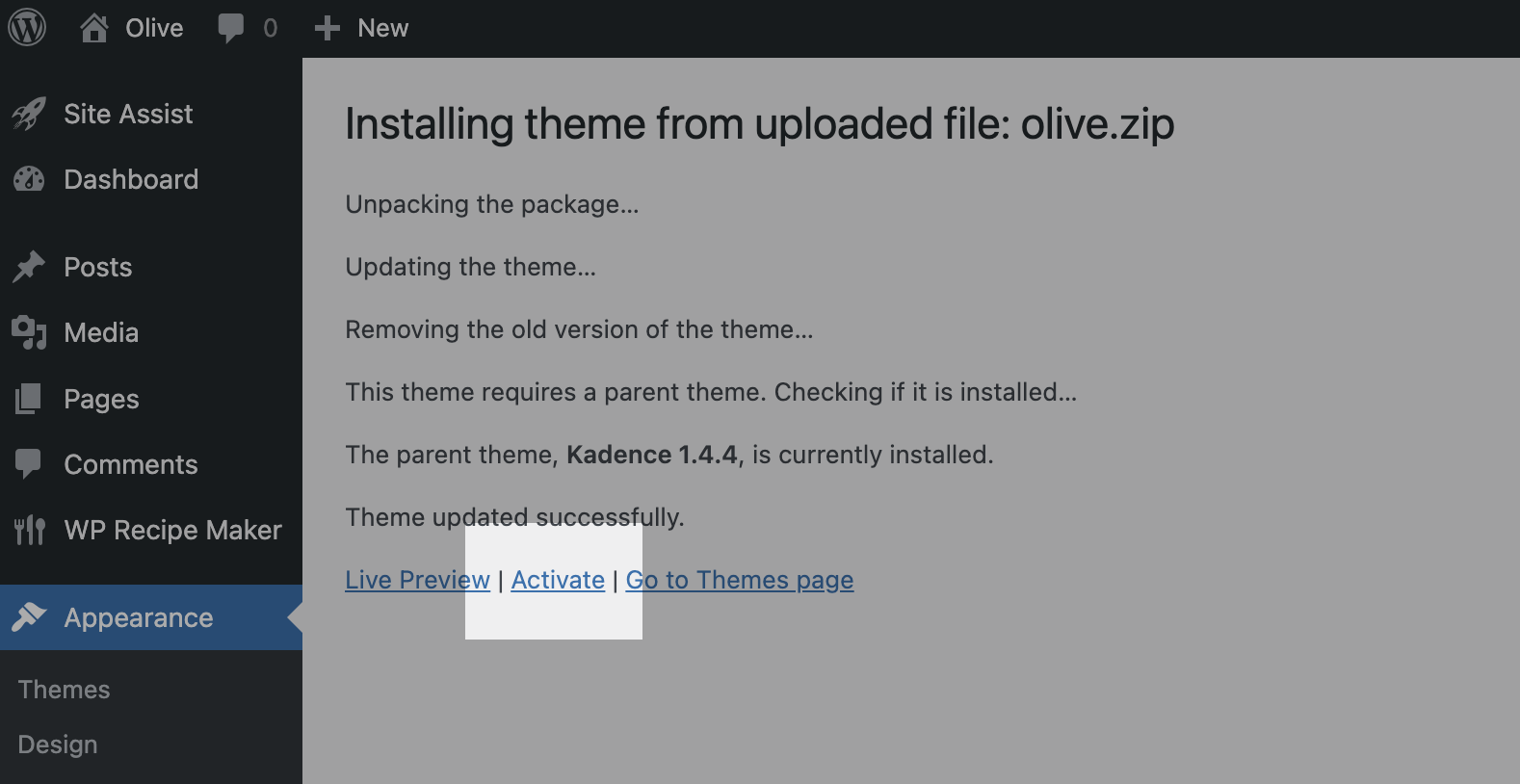
That's it! You're done. This will replace your previous version with the updated one.