How to Update WordPress, Plugins, and Themes
On this page:
How to update WordPress
If there is a WordPress core update available, you should see a message at the top of your dashboard. Click "Please Update Now". Once you are on the WordPress Updates page, click the “Update” button to start the process of updating WordPress. You shouldn’t need to do anything else and, once it’s finished, you will be up-to-date.


How to update plugins
Navigate to Dashboard > Updates. Under "Plugins", you'll see a list of plugins that have updates available. Check off the plugins you wish to update, or click "select all", and then click the "Update plugins" button. Don't navigate away from the page until the updates are complete.

How to update themes
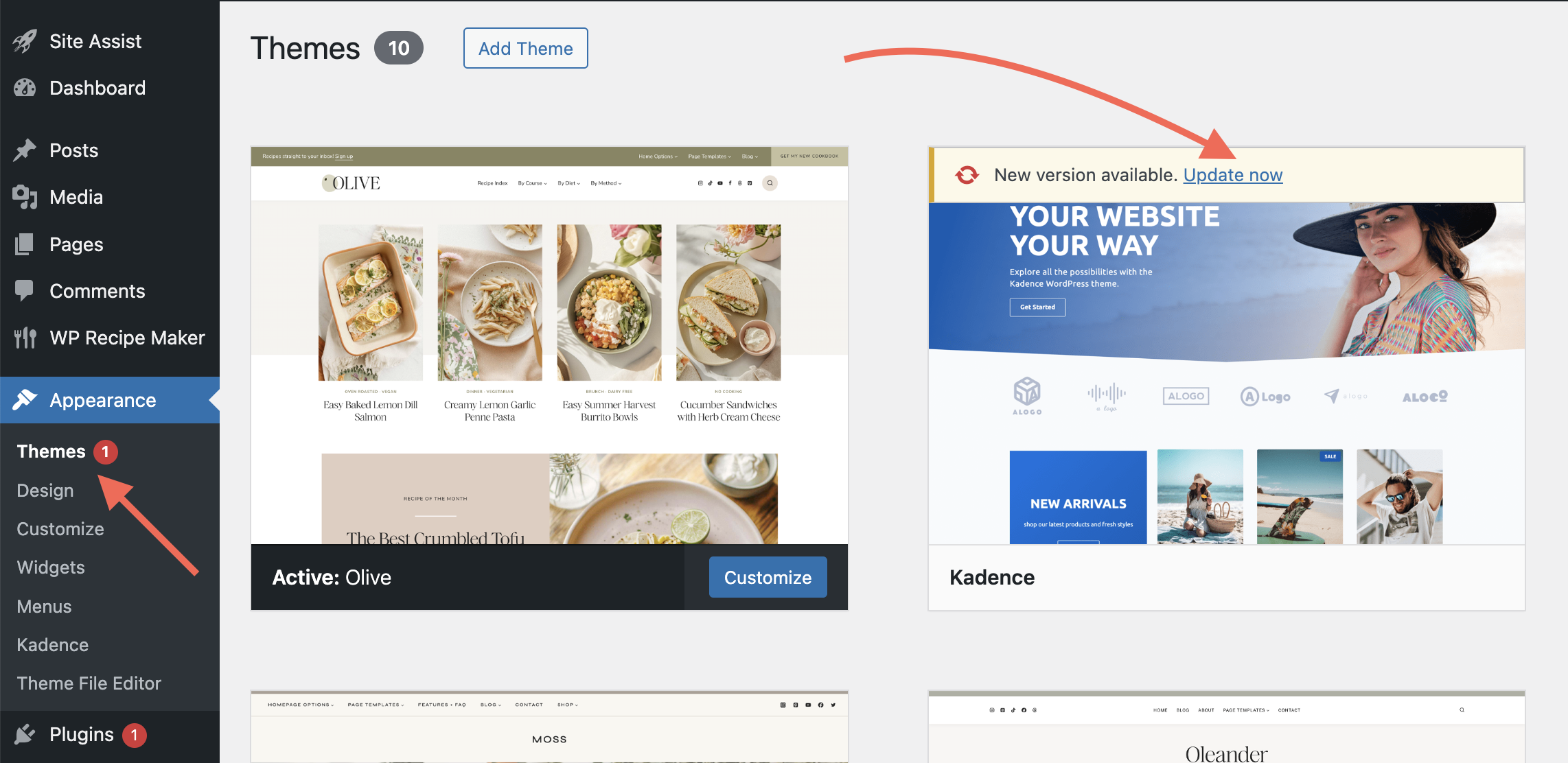
Navigate to Appearance > Themes (or Dashboard > Updates)
Any themes that have available updates will display an update message. Click "update now" to update the theme.