
Tart – Numbered Top 5/Most Loved Posts
Tart's homepage and Start Here page comes with a Top 5 Posts section (titled "Most Loved Recipes" on the demo) that shows off five of your most popular posts, each with its own numbered circle.
Here's a quick rundown of how to choose which posts show up, number them, and change the circle colors to match your brand.

How this section works
Before we jump in, here's what's happening behind the scenes:
- The section pulls in posts that have the tag top
- It shows 5 posts, sorted by the Order number you give each post
- The numbers inside the circles are added automatically based on each post's spot in the row
Adding your posts and numbering them 1–5
Choose 5 posts you want to display in your Top 5 section. These could be your most popular, most viewed, most commented on, your personal favorites... whatever you want!
You'll tag each post and give it a number at the same time, right from your Posts list (no need to open the post):
- From your WordPress dashboard, go to Posts > All Posts.
- Find the first post you want to feature. If you have a lot of posts, the Search Posts box at the top right is the quickest way to find it.
-
Hover over the post and click Quick Edit.
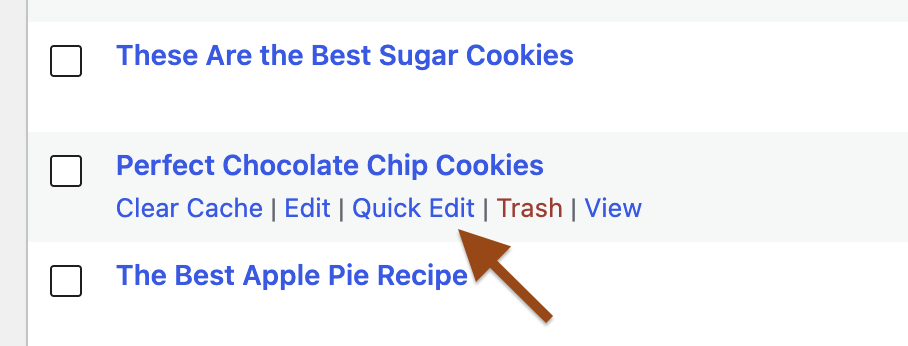
Quick Edit
- In the Tags box, add the tag top. If the post already has tags, just separate them with commas.
-
In the Order field, type the number you want this post to be (1 for first, 2 for second, and so on).
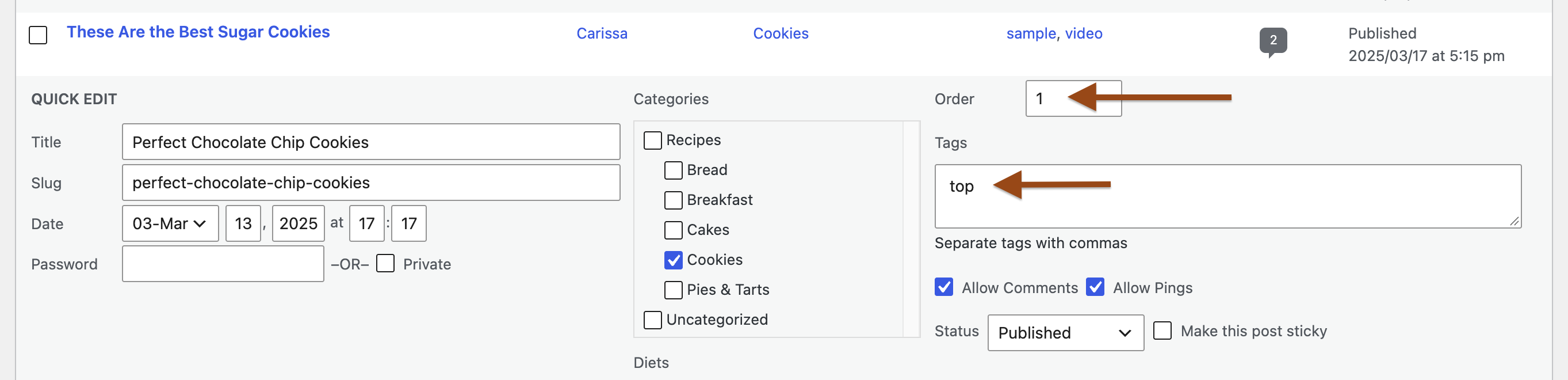
Add top tag and order number - Lastly, scroll down a bit and click the blue Update button.
- Repeat these steps for the rest, then refresh your homepage to see them in order.
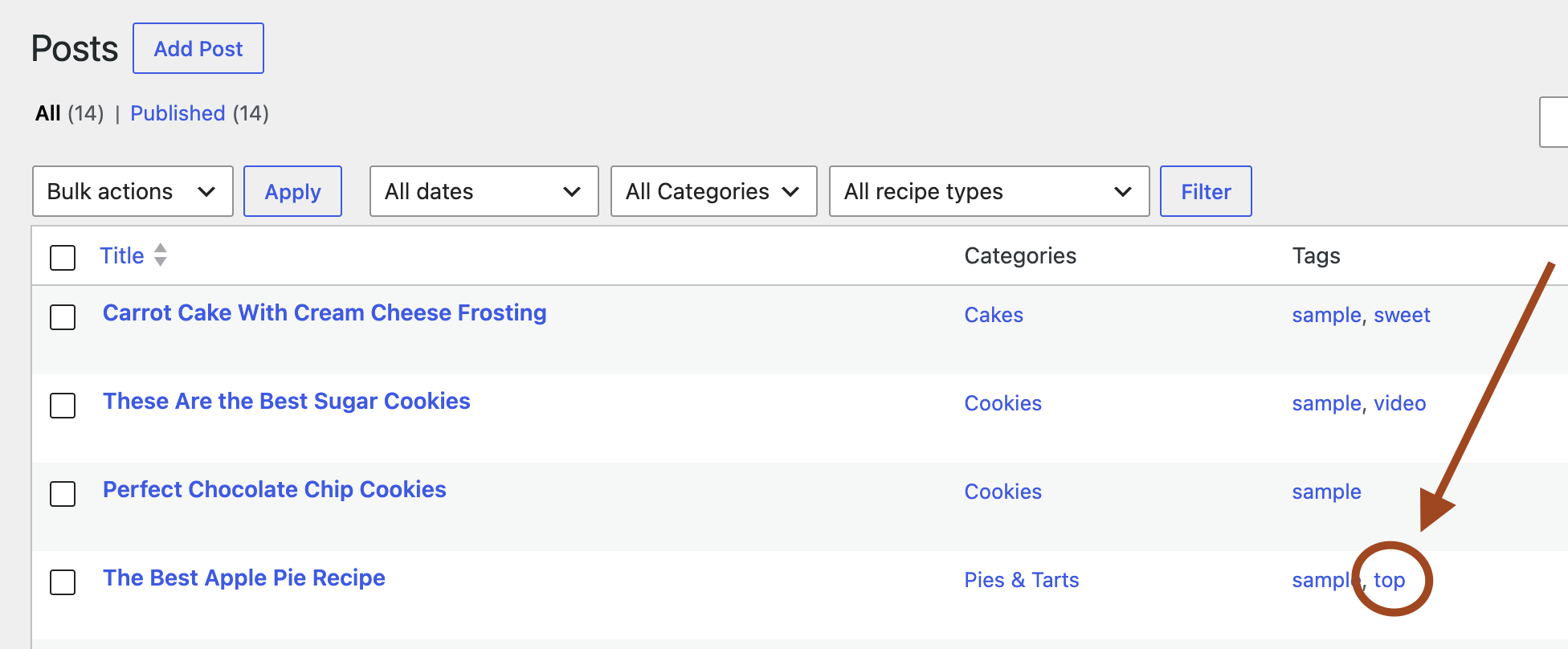
If you’re updating your Top 5 down the road and need to remove some posts from it to add new ones, just remove the “top” tag from any post you don’t want in the Top 5 anymore.
💡Tip: Having trouble finding all of your posts tagged with Top? Find just one post with the tag Top and click "Top". This will open a new page with only your posts that have that tag!
Changing the circle colors
Each circle uses a color from your global palette, so if you update your palette later, the circles update with it. If you'd like different palette colors on each circle, here's how to swap them:
- Open your homepage (or Start Here page) in the editor.
- Click the white space around the Top 5 section to select the Row.
- In the block settings on the right, click the Advanced tab, then open the Custom CSS panel.
- Click Edit in Modal button to open a bigger, easier-to-read version of the code.
-
Look at the screenshot below. The only thing you need to change is the number at the very end of each
--global-palette(before the closing parenthesis). There are 10 global palette colors, so you can choose 1-10 (more on this below). So if you see global-palette6, you can change it to global-palette8 if you wanted.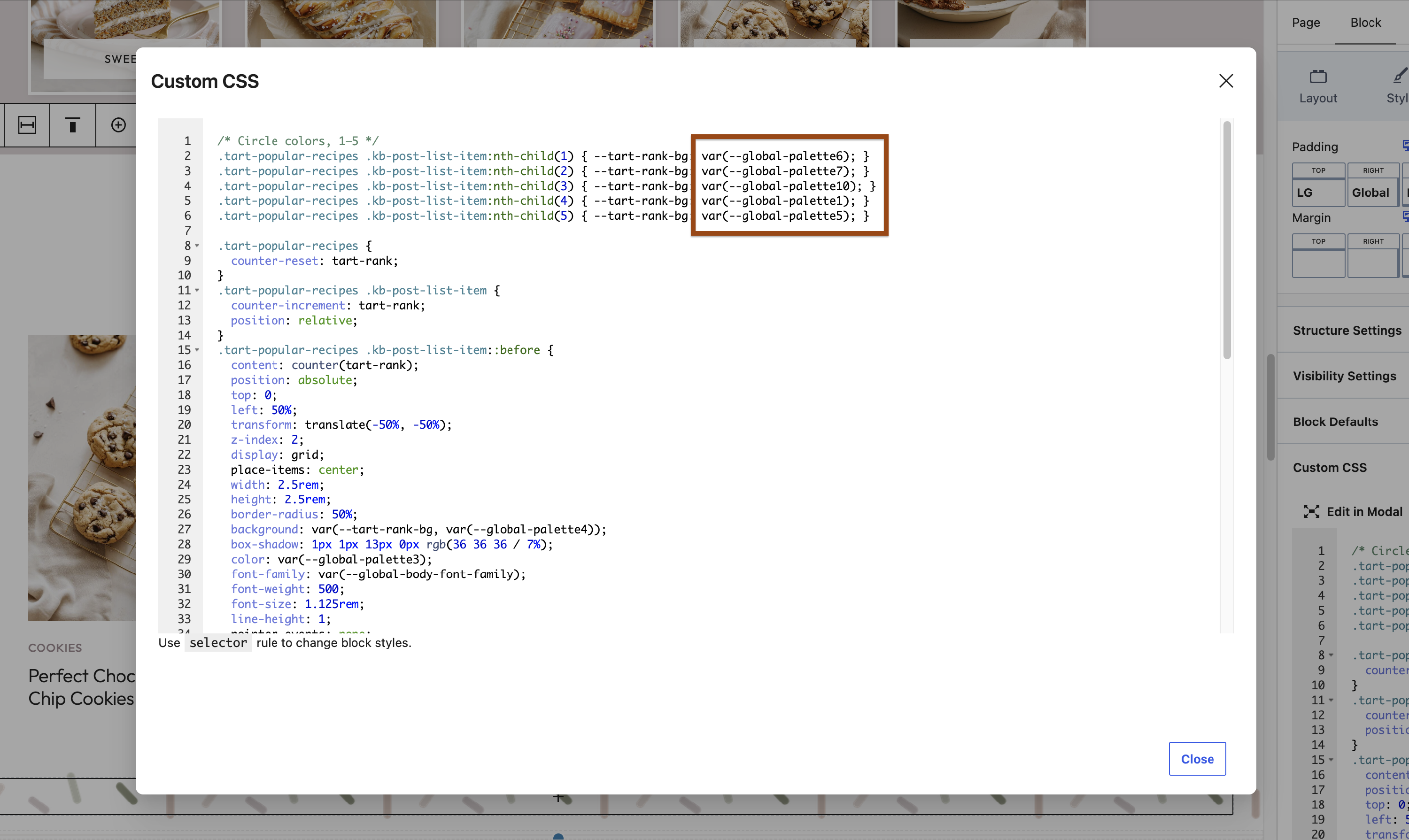
Change the number at the end of each global palette color
- Click Close, then click Save at the top of the editor. View your site live to see the changes.
Which number is which color?
To see your colors, go to Appearance > Customize > Colors & Fonts > Colors and look at your Global Palette. Then use this cheat sheet:

- Accents: 1, 2, 10
- Contrast: 3, 4, 5, 6
- Base: 7, 8, 9
A few things to know
- The circles and hover effect don't show up inside the editor. That's totally normal! Preview the page or view your live site to see your new colors.
- Only change the number. Leave everything else in the code exactly as it is.