
Tart – Using the Tart Recipe Taxonomies Plugin
The Tart Recipe Taxonomies plugin gives you extra ways to organize your recipes, beyond your regular categories. Think Diet, Season, Occasion, Skill Level, and Method, plus any of your own that you'd like to create.
This plugin is included with Tart, and you'll see a notice at the top of your dashboard asking you to install it when you first activate the theme. If you don't see the notice, go to Appearance > Tart Plugins to install.

Do I need it?
Nope! The plugin is completely optional. Your site will work just fine without it. You can use your categories as you normally do.
It's a great fit if you'd like to:
- Set up recipe filters with FacetWP, now or down the road
- Organize your recipes in more ways than categories alone
- Give readers more ways to browse, like a page of all your Christmas recipes or all your vegan recipes
What is a taxonomy?
A taxonomy is just a way to organize and group your posts. And you actually already use one: your categories! Yep, your categories are a type of taxonomy.
Each taxonomy can hold a set of options called terms. For example:
- Category (taxonomy)
- Bread (Term)
- Cookies (term)
- Cake (term)
- Pies & Tarts (term)
- Season (taxonomy)
- Spring (term)
- Summer (term)
- Fall (term)
- Winter (term)
- Diet (taxonomy)
- Vegan (term)
- Gluten-Free (term)
- Nut-Free (term)
- Skill Level (taxonomy)
- Beginner (term)
- Intermediate (term)
- Advanced (term)
The best part is that one recipe can belong to lots of taxonomies at once, and you can have more than one term! For example, your gingerbread cookie recipe could have all of these:
- Category: Cookies
- Diet: Nut-Free, Gluten-Free
- Season: Winter
- Occasion: Christmas
- Skill Level: Beginner
Categories vs. taxonomies
A simple rule of thumb:
- Categories are for the main types of recipes on your site (what the recipe is). Think Bread, Breakfast, Cakes, Cookies, and Pies & Tarts.
- Taxonomies are for the extra details that cut across your categories (who it's for, when to make it, how hard it is). Think Diet, Season, Occasion, and Skill Level.
Setting up your taxonomies
Choose your built-in taxonomies
Once the plugin is active, go to Settings > Tart Recipe Taxonomies. Tart comes with five built-in taxonomies, and they're all turned on by default:
- Diets
- Seasons
- Occasions
- Skill Levels
Disable any of these built-in taxonomies that you don't want to use!

Each taxonomy that is enabled, and any custom taxonomies you've created, appear under Posts in your dashboard (for example, Posts > Seasons) and in the post editor sidebar.

Create your own taxonomy
Want to organize your recipes in a way that isn't built in? You can create your own! A few ideas to get you thinking:
- Method
- Main Ingredient
- Equipment
- Prep Time
To add one:
- Go to Settings > Tart Recipe Taxonomies and scroll down to Add a Taxonomy
- Enter a Name, like Prep Time
- Enter a Slug, or leave it blank and one will be made from the name for you
- Click Add Taxonomy
Your new taxonomy now shows up under Your Custom Taxonomies, and under Posts in your dashboard just like the other taxonomies.

Add your terms
Now it's time to add your terms! Fill each taxonomy with its options:
- Go to Posts and click your taxonomy (for example, Posts > Seasons)
- Type a Name for your term (like Fall) and click Add New Season
- Repeat for the rest of your terms (Winter, Spring, Summer)
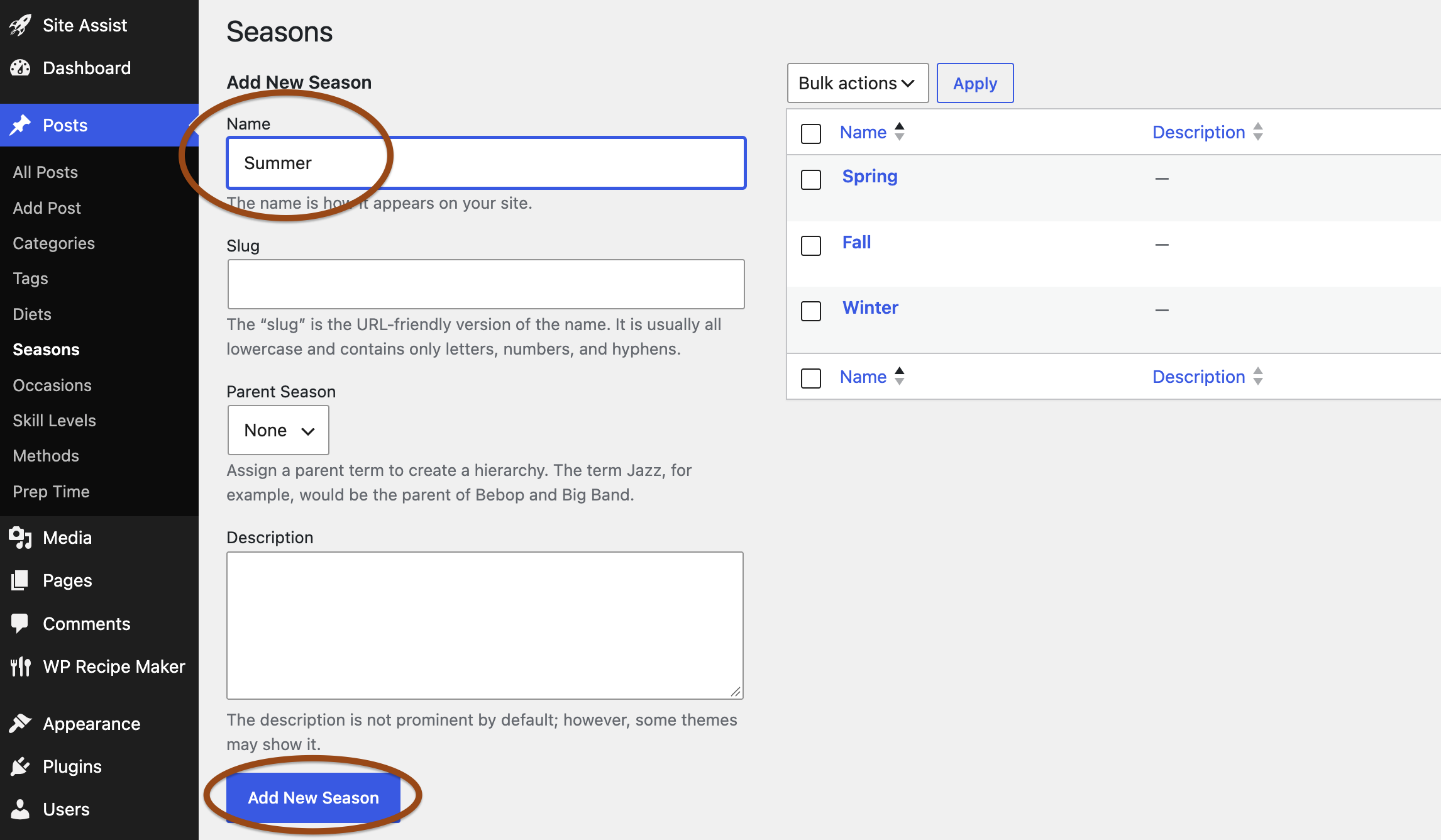
Do these steps for every taxonomy.
Assign terms to your recipes
Note: you don't need to fill in every taxonomy for every single recipe. For example, if a recipe isn't really tied to an occasion, just leave Occasion blank. No worries!
For new recipes: While editing a post, you can find each taxonomy in the sidebar and check the boxes that apply. Similar to how you check the categories when making a post!

For existing recipes: Go to Posts > All Posts, hover over a post, and click Quick Edit. You'll see a box for each taxonomy. Check off any terms that fit your recipe!
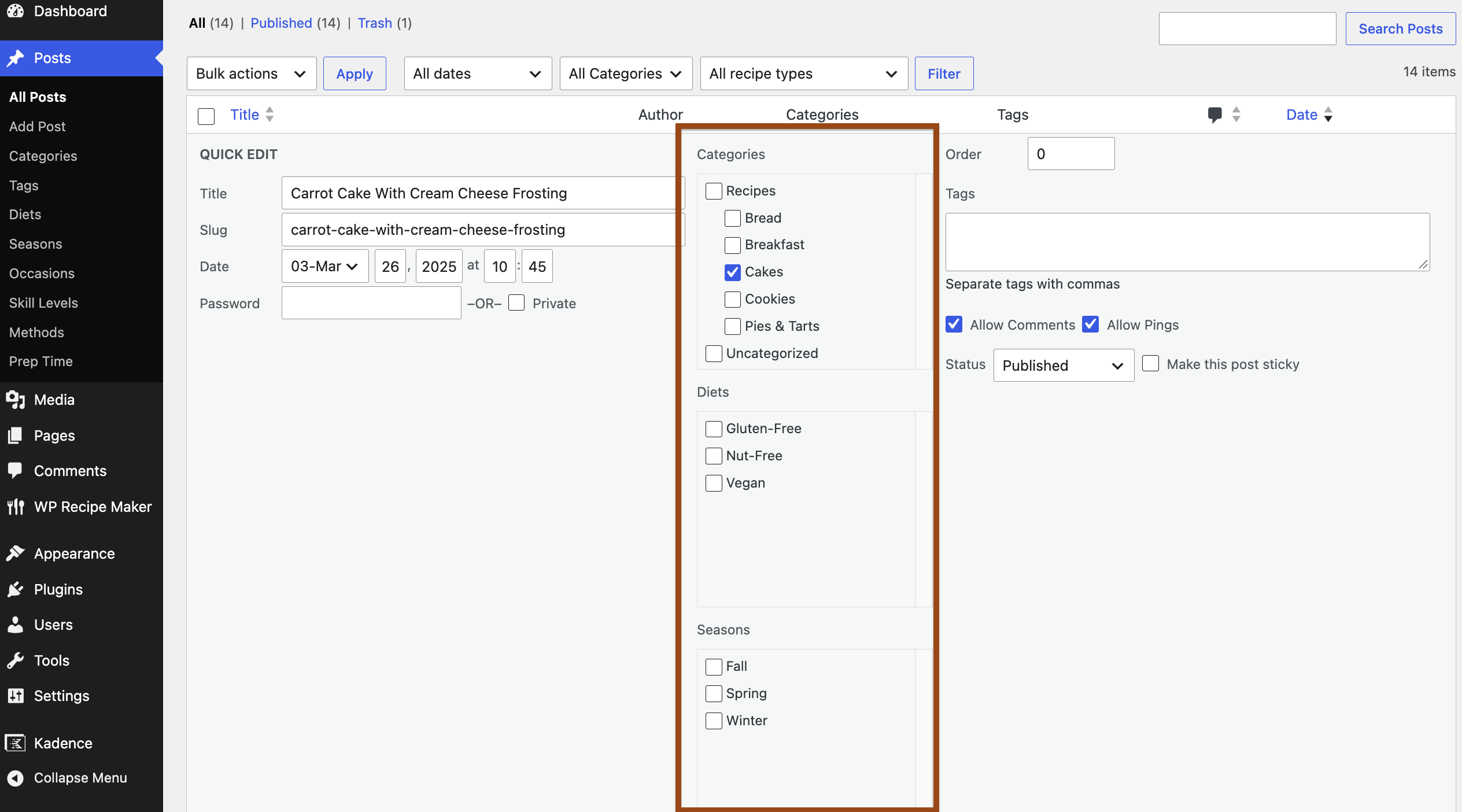
To quickly update many recipes at once:
- Go to Posts > All Posts and check the box next to each recipe you want to update (for example, all of your pumpkin recipes on that page)
- Choose Edit from the Bulk actions dropdown and click Apply
- Check the terms you want to add to the posts and click Update

What you can do with your taxonomies
Once your recipes have terms, there are lots of ways to put your taxonomies to work.
Every term gets its own page. Just like your categories, each term automatically gets an archive page that lists all of its recipes. For example, yoursite.com/season/fall/ shows every recipe you've tagged Fall, and yoursite.com/diet/vegan/ shows all of your vegan recipes.
Add them to your menus. Go to Appearance > Menus, and you'll find a box for each taxonomy on the left, right alongside Pages and Categories. Check the terms you want and click Add to Menu. (Don't see them? Click Screen Options at the top right of the screen and check the boxes for your taxonomies.) This is exactly how the Category links menu in Tart's Offscreen Menu is set up on the demo.
Show a Browse Menu on their pages. Tart's Browse Menu can show links to the other terms in a taxonomy, so a reader on your Fall page can hop over to Winter in one click. Turn it on under Appearance > Customize > Tart Theme Settings > Archive Browse Menu by checking Enable Browse Menu on custom taxonomies. [Link to the Browse Menu article here]
Feature them on your pages. The Kadence Posts block can show recipes from a taxonomy, too. Add one to your homepage, then use the Select the post Taxonomy setting to show something like your Christmas recipes in December, or your Fall recipes in September.
Common questions
What happens if I turn off a taxonomy?
It's hidden from your dashboard and your site, but its terms (and the recipes they're assigned to) are saved. Turn it back on, and everything comes right back.
What happens if I remove a custom taxonomy?
Same thing! Its terms are saved, so if you add it again with the exact same slug, everything returns.
Why can't I use a certain slug?
A few words are already used by WordPress (like "category", "tag", or "page"), so they can't be used as a slug. Slugs also need to be unique, use only lowercase letters, numbers, and hyphens, and be 27 characters or fewer. If a slug doesn't work, the plugin will let you know why.