
Tart – Category/Archive Page Browse Filter
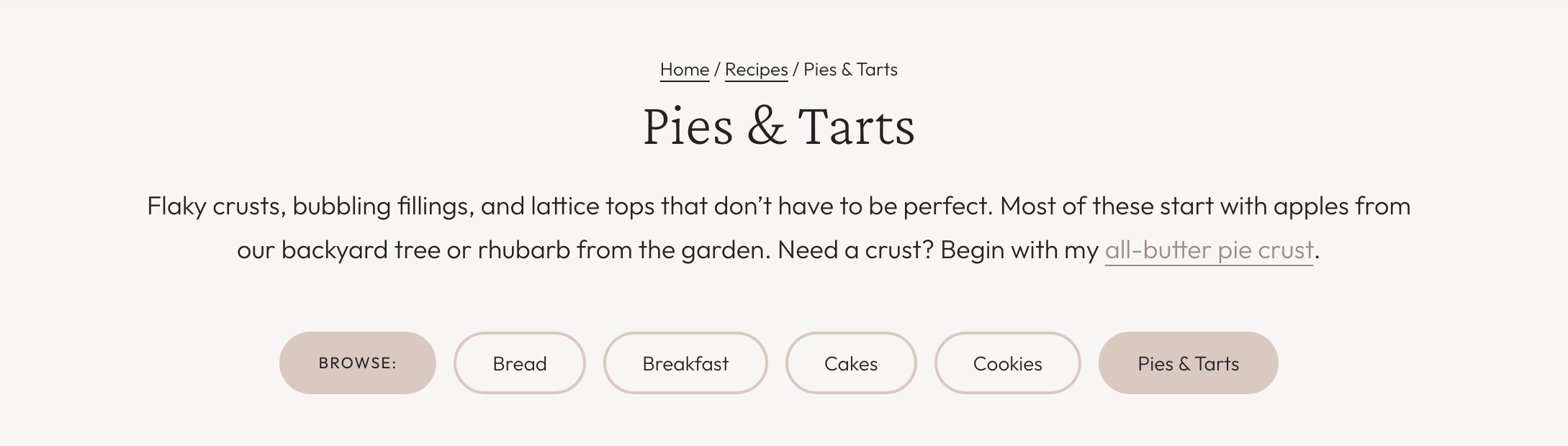
Tart's Browse Menu adds a row of links to related categories right below the title on your category pages. Tart builds it for you automatically from the categories and subcategories you already have. There's no separate menu to create or keep updated!
How it works
- On a parent category (like Recipes), the menu shows its subcategories (Cakes, Cookies, Pies)
- On a subcategory (like Cakes), the menu shows all the subcategories under the same parent, with the one you're on highlighted
- If a category has no subcategories, the menu won't show up
- Empty categories (with no published posts yet) are left out automatically
- Links are always listed in alphabetical order
You can also turn the Browse Menu on for your recipe taxonomies, like Diets or Seasons. It works the same way.
Where to find the settings
- From your WordPress dashboard, go to Appearance > Customize
- Click Tart Theme Settings
- Click Archive Browse Menu
💡 Tip: The Customizer opens on your homepage, where the Browse Menu doesn't show. Before you start changing things, click over to a category page in the preview (one that has subcategories) so you can see your changes as you make them.
What each setting does
The settings are split into three groups.
General
- Enable Browse Menu on categories: Shows the menu on your category pages. This is on by default.
- Enable Browse Menu on custom taxonomies: Shows the menu on your recipe taxonomy pages, like Diets and Seasons. This is off by default.
- Browse Menu text: The little label in front of the links. It says "Browse:" by default, but you can change it to anything you like ("Explore:" or "Sort By:" work great). Leave it empty if you'd rather not have a label at all.
- Browse Menu style: Choose Pills for rounded, button-style links, or Links for simple text links that underline when you hover over them.
Browse Label
This is the "Browse:" text in front of your links.
- Background color: The background behind the label. This color is also used when someone hovers over a pill, and for the pill of the page they're on. (Pills style only)
- Text color: The color of the label text. This is also used for the hovered pill and the current page's pill.
Category Pills / Links
- Text color: The color of your category names.
- Border color: The border around each pill. (Pills style only)
- Border width (px): How thick the pill border is. The default is 2. (Pills style only)
💡 Want to go back to the original color? Click the color picker and choose Clear. Any color you leave empty automatically uses your theme's button colors, which come from your Global Palette. So if you ever update your palette, your Browse Menu updates right along with it!
How to change the alignment
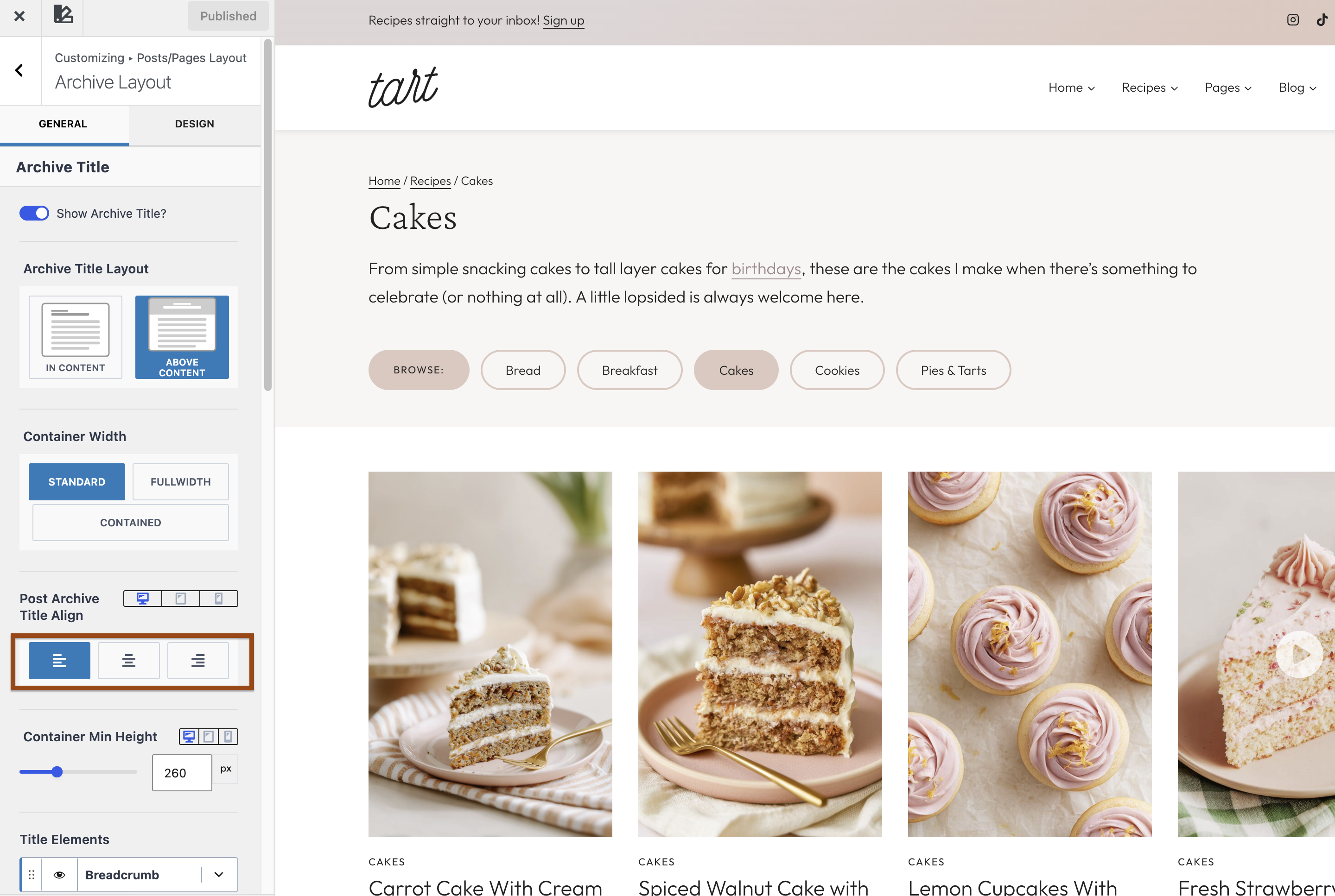
The menu lines up with your title area. If your title area is centered, the menu is centered too. By default, it's left aligned. You can change the title alignment under Appearance > Customize > Posts/Pages Layout > Archive Layout
Not seeing the Browse Menu?
If the menu isn't showing up on a category page, check that:
- The category has at least one subcategory with published posts
- The right Enable checkbox is turned on (categories or custom taxonomies)
- Show Archive Title is turned on under Appearance > Customize > Posts/Pages Layout > Archive Layout.