
Tart – Single Post Header Settings

Tart's single post header lets you show your featured image right next to your post title, plus your recipe buttons (like Jump to Recipe and Pin It) at the top of your recipe posts. Kadence doesn't include these options on its own, so I added them to Tart for you!
Where to find the settings
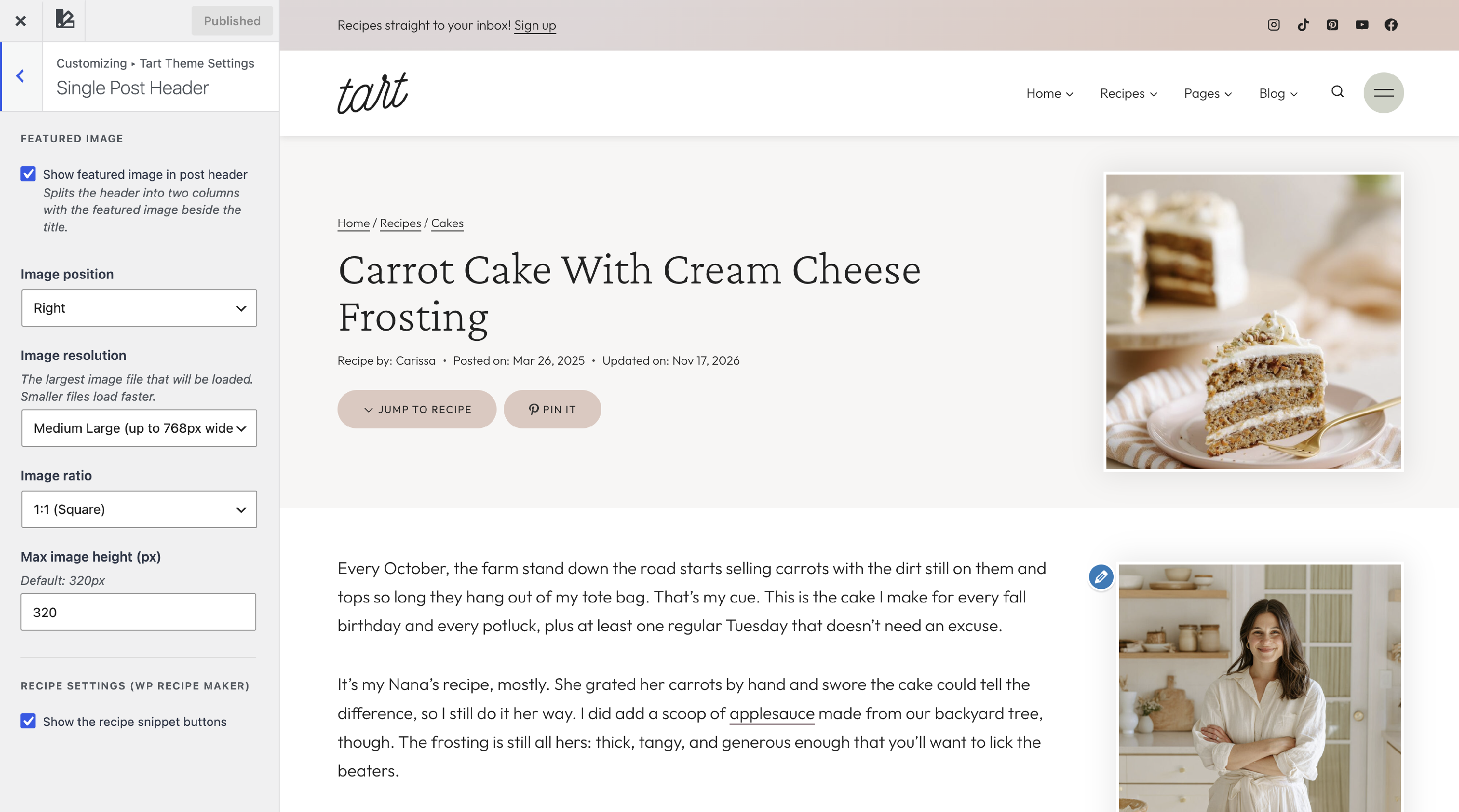
- Go to Appearance > Customize > Tart Theme Settings > Single Post Header
- In the site preview on the right, click on one of your recipe posts. The Customizer opens on your homepage, so you'll need to be on a post to see your changes as you make them.
Note: These settings only work when your post title is shown in the header area at the top of the page. If they don't seem to be doing anything, go to Appearance > Customize > Posts/Pages Layout > Single Post Layout and make sure Post Title Layout is set to Above Content.
The settings
Featured image
- Show featured image in post header: Splits your header into two columns, with your featured image beside the title. Uncheck it if you'd rather have just the title.
- Image position: Choose whether the image sits on the Right or Left of the title.
- Image resolution: The largest image file that will load. Smaller files load faster, and Medium Large is a great balance of quality and speed for most sites.
- Image ratio: The shape of the image, from 4:3 (Landscape) to 1:1 (Square) to 2:3 (Tall Portrait).
- Max image height (px): How tall the image can get. The default is 320.
Recipe settings (WP Recipe Maker)
- Show the recipe snippet buttons: Adds your WP Recipe Maker buttons (like Jump to Recipe and Pin It) to the header. These only show up on posts that have a recipe card.
Don't forget to click Publish once you're happy with how everything looks!
More single post settings
Looking for things like your breadcrumbs, post meta (author and date), font settings, or the header's background and height? Those are Kadence's own single post settings, and you'll find them under Appearance > Customize > Posts/Pages Layout > Single Post Layout.