
Kadence – Adding & Moving Blocks
Whether you're adding a paragraph, image, button, or any other block, the process works the same way. Here are three easy ways to do it:
Option 1: The + (Add Block) icon
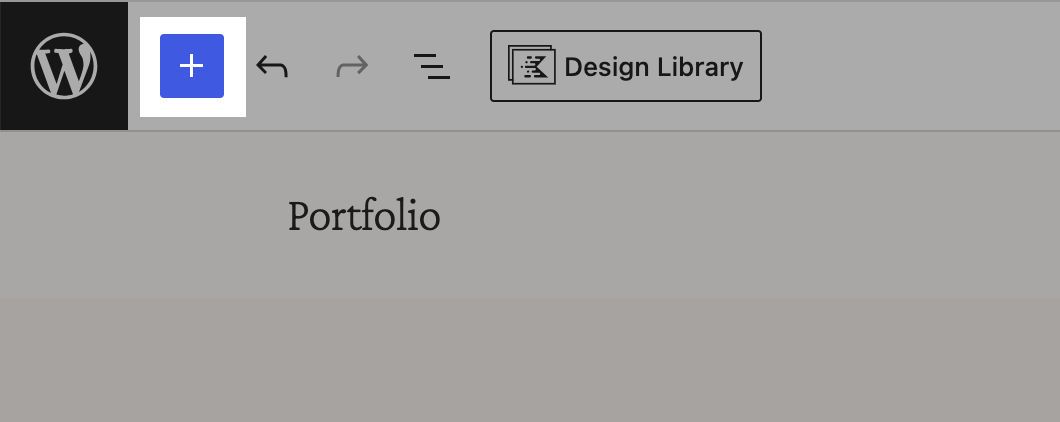
Click the + icon in the top toolbar of your page/post editor. This opens the block library, where you can either browse by category or type a keyword into the search bar to find the block you're looking for. Click on a block to add it to the page or post.
Option 2: The inline + icon
Hover just below any existing block, and you'll see a + icon appear. Click it to open the block library in that exact spot, so your new block gets added right where you want it.

Option 3: The slash command
Click into an empty area where you'd like to add a block, then type / followed by the block's name (for example, typing "/image" would bring up the Image and Gallery blocks).

How To Move Your Block
Need to reorder your blocks? Here are three ways:
Drag and Drop
Click on a block to select it, then click and hold the 6-dot icon in the toolbar and drag it to a new spot.

Up/down arrows
Click on a block to select it, then use the up and down arrows in the toolbar to move it one spot at a time.
List View
Click the List View in the top toolbar to see all your blocks laid out in a list. From here, you can click and drag any block to reorder it – super handy for pages with lots of blocks where you need to nest items.
