
Kadence – Customizing Button Styles
Your theme comes with three global button styles built right in – Base, Secondary, and Outline – so every button on your site looks cohesive without you having to style each one individually. This guide walks you through where to find them and what each setting does.
💡 Note: Secondary and Outline styles are a newer Kadence feature, so only my newer themes come pre-styled with all three. Follow this guide on how to style them!
Where to find the button settings
- From your WordPress dashboard, go to Appearance > Customize
- Click Colors & Fonts
- Click Buttons
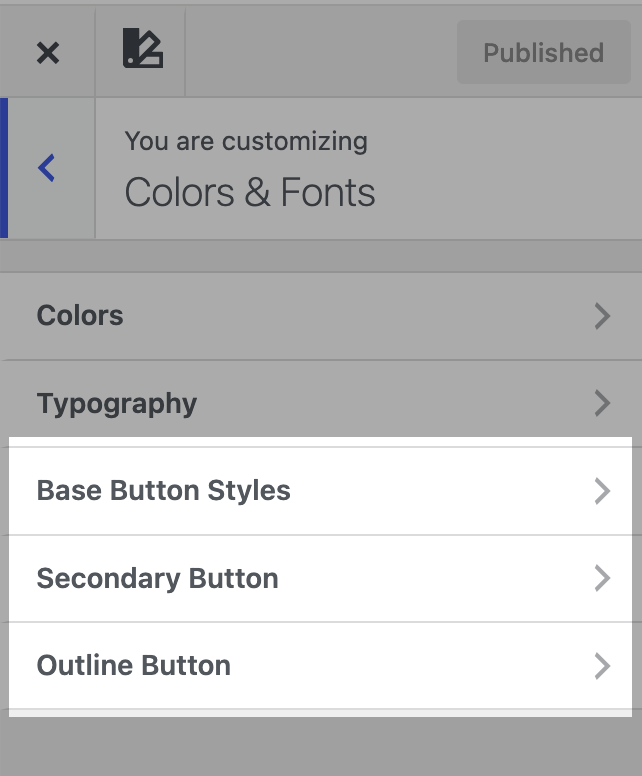
You'll see three button types listed: Base, Secondary, and Outline
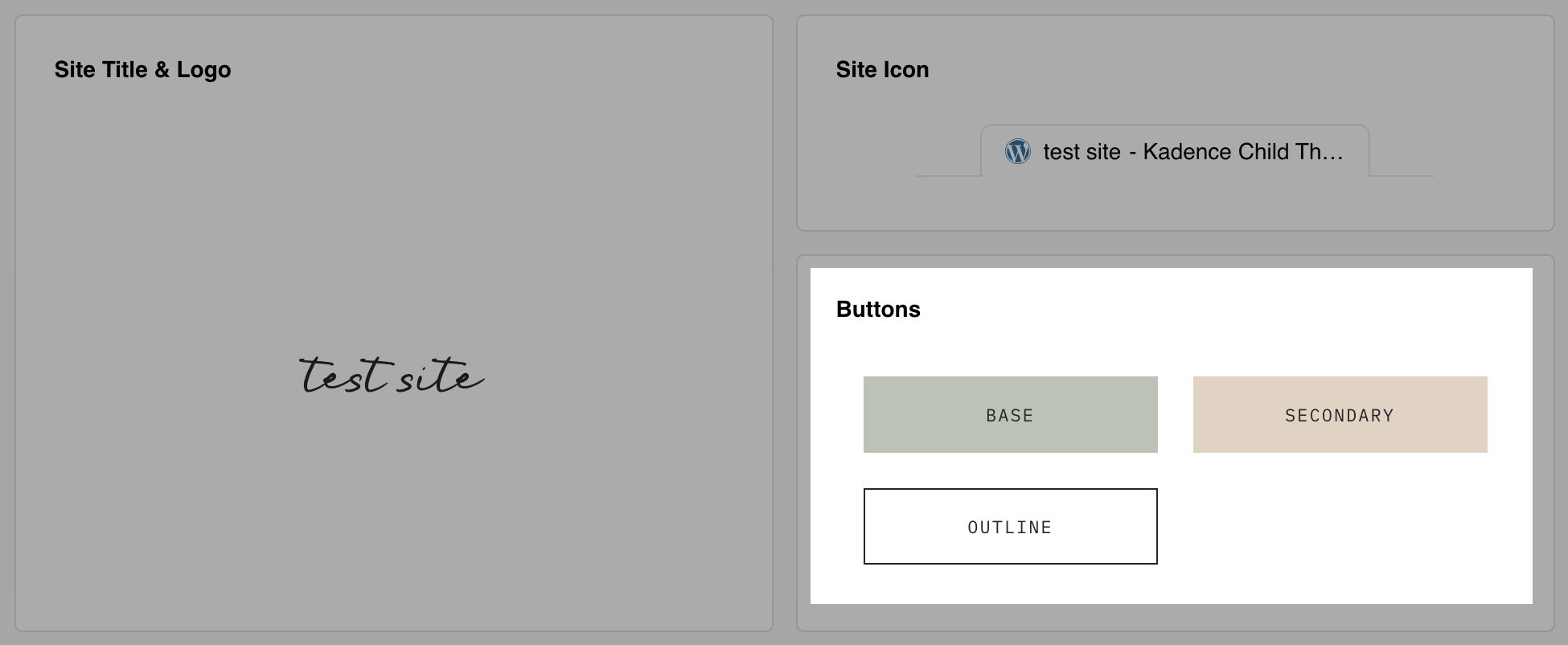
💡 The Base button is your main "solid" button (the one used most often), secondary is your alternate solid style, and outline is a see-through button with just a border.
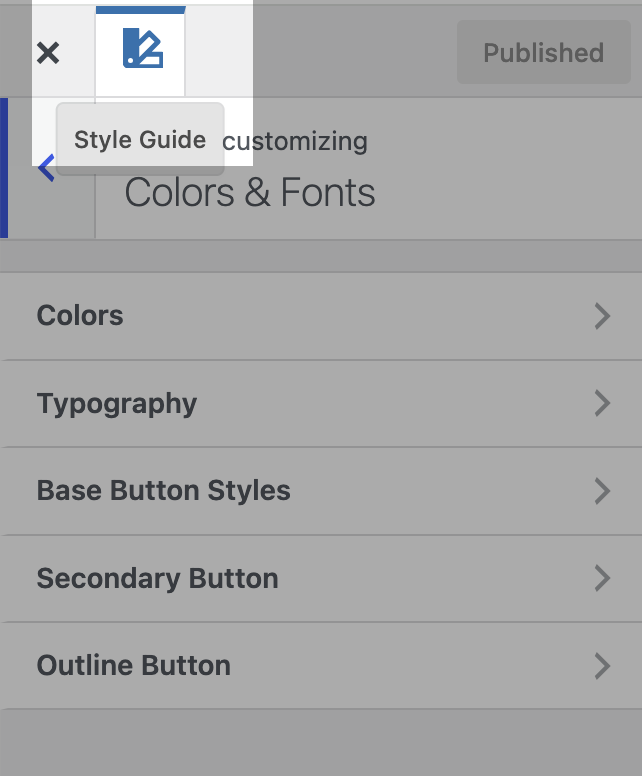
💡 You can also use the Style Guide to view how your buttons look. Additionally, you can click on each button type from the Style Guide to go directly to that button types settings.
|
|
|
Customizing each button type
Click into any of the three (Base, Secondary, or Outline) to open its settings.
Here's what you can adjust:

|
|
Adding a button to a page
Want to add a button to a page or post? Here's how:
-
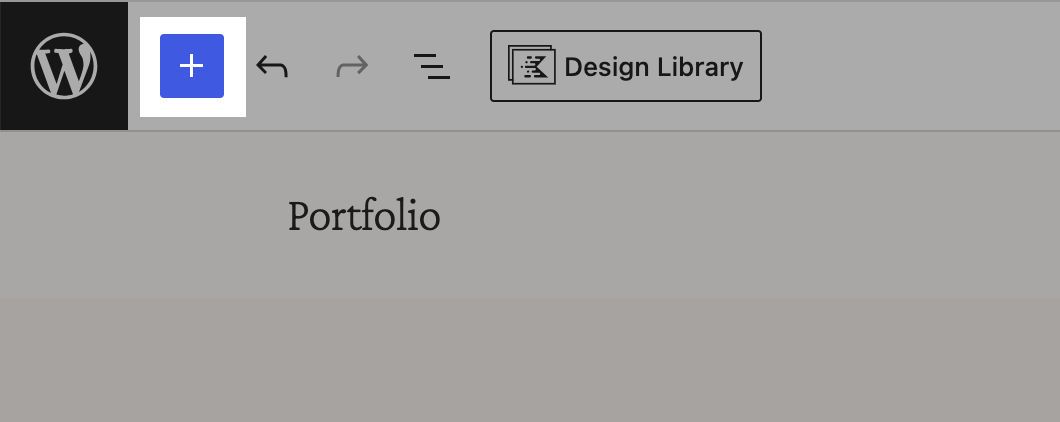
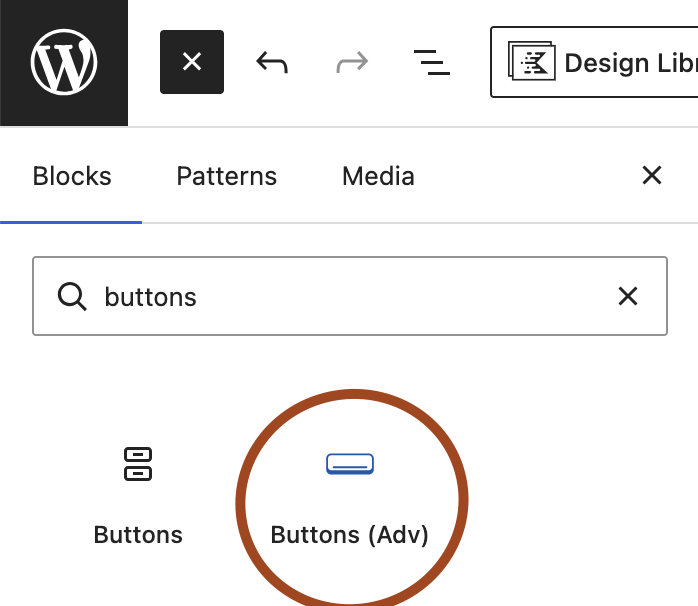
In the page/post editor, click the + icon and search for "Buttons"
-
Add the blue Buttons (Adv) block, then click on the button itself to select it.
-
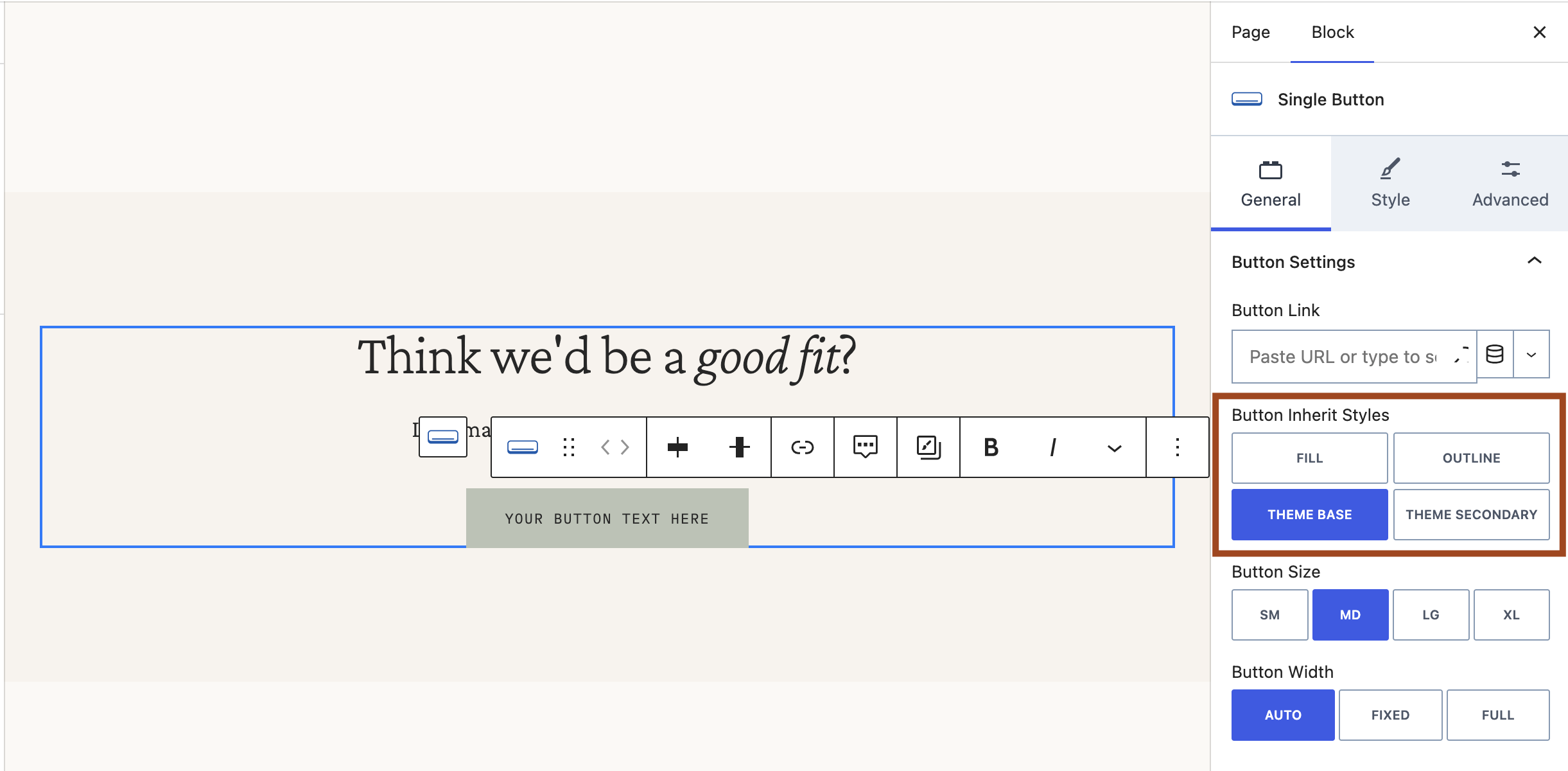
In the block settings panel on the right, look for Button Inherit Styles under the General tab. This is where you'll choose which of your three global styles to use: Theme Base, Theme Secondary, or Outline.
- Type in your button text and add your link.
-
To move your button somewhere else, first click somewhere to the right or left side of the button to select the parent block. Then hold down on the 6 dots icon and you can drag and drop it wherever you want.
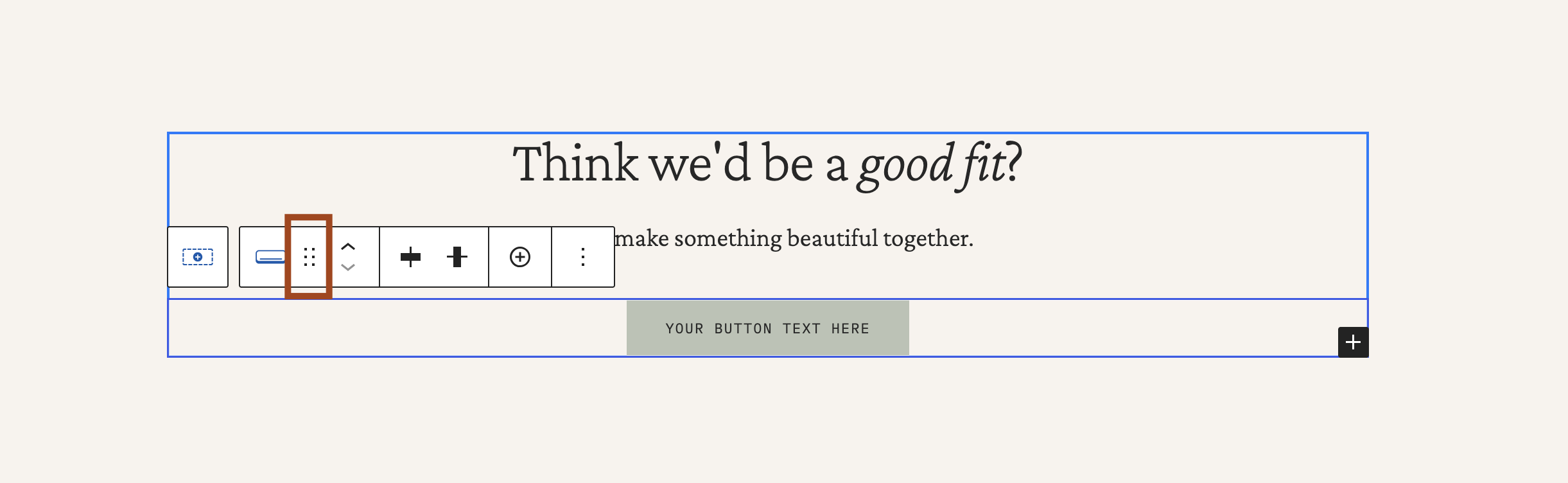
Move your button
💡 Want this one button to look different from the rest? With the button still selected, you can override individual settings right there in the block settings, without affecting your global button styles anywhere else on the site. Just click the "Style" tab on the right to set the styles for it.
A couple things to know
- These settings are global — meaning if you change your Base button here, it updates everywhere that button style is used across your site. The one exception: if you've manually customized a specific button on a page, that button will keep its own custom styling instead of following the global update.
- Don't forget to click Publish once you're happy with how everything looks!