
Hideaway – Interactive Map

When you imported the Hideaway theme demo, the map shown above is already created and customized for you.
Editing Your Map
You can edit the map at MapGeo > All Maps > Hideaway Map.
-
Highlighted countries: To add a new region, go to Regions > Add New Region. A list of regions can be found on the right hand side (click the + sign to add it.) To delete a region, just click the X icon. You can add a link to the Action Content field.
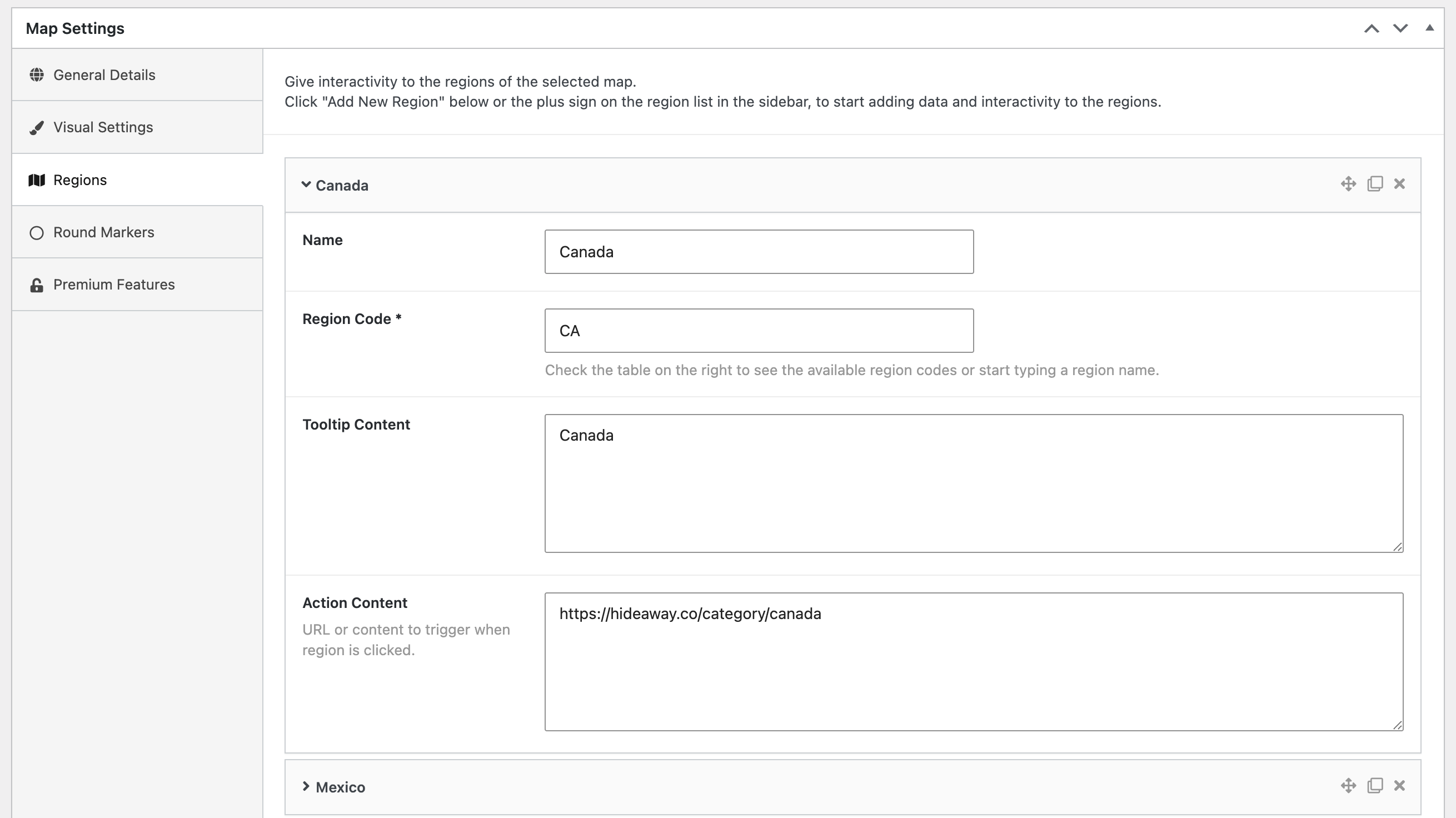
Example of a region -
Round circle markers: Go to Round Markers > Add New Marker. Scroll up to the top and click anywhere on the map. A box will appear with the latitude and longitude of where you clicked, and then you can copy and paste those values into the marker next to "Coordinates". You can also add a link to the Action Content field.
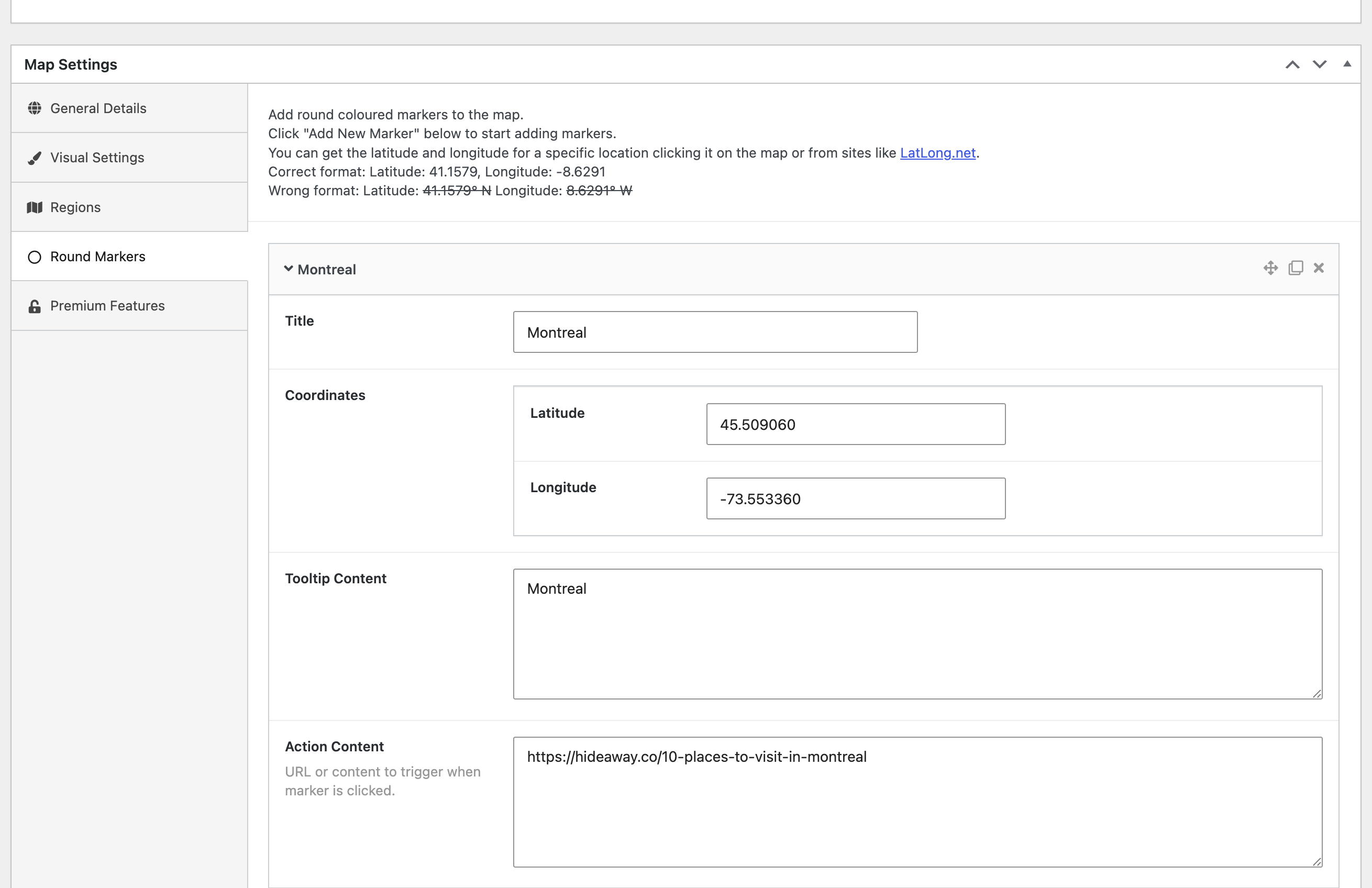
Example of a round marker
I suggest linking your Regions to category pages and Markers to tags or specific posts.
Customizing the Colors
- Change the color of the countries: Go to MapGeo > All Maps > Hideaway Map > Regions > Default values
- Change the color of the markers: Go to MapGeo > All Maps > Hideaway Map > Round Markers > Default values
"Explore By Region" Block

The map is shown alongside a "Explore By Region" accordion block. When a parent item is clicked in the menu (e.g. North America), the child items (e.g. Canada, USA) expand.
These child items are intended to be linked to category pages on your website.
Please note: the interactive map and "Explore By Region" block do not interact. They are completely independent of one another.
Learn More
You can find all of the documentation for the MapGeo plugin here